Canned responses are saved text shortcuts for messages you send often. Create the text once in Phound Desktop, then choose it from the message-field context menu when you need it again.
A canned response is reusable text. It does not use AI and does not send automatically. You can review or change the message before selecting Send.
Find Canned Responses
- Open Phound Desktop.
- Select the gear in the left sidebar to open Preferences.
- Select AI Assistants.
- Find the Canned responses section beneath the Chat assistant options.
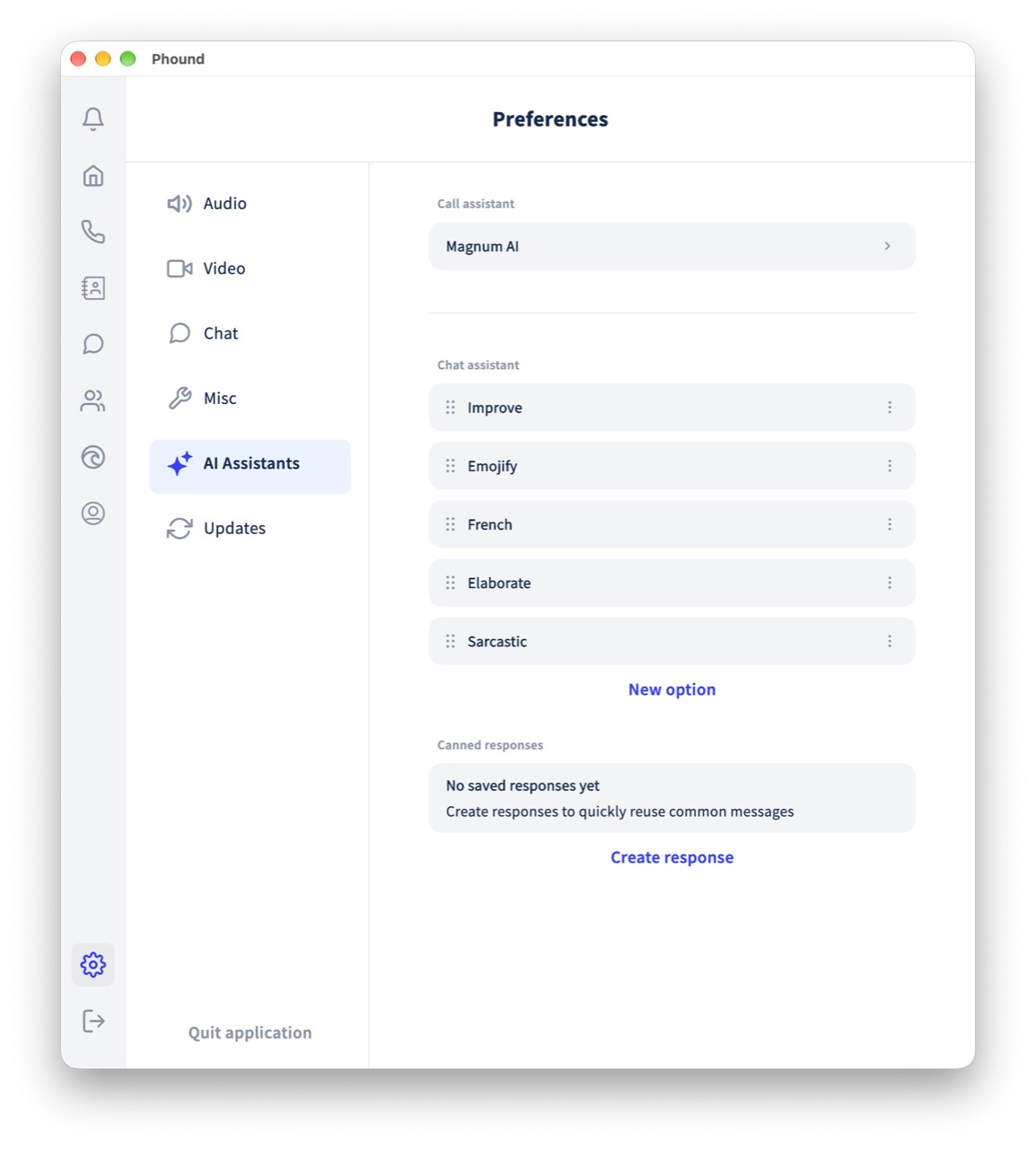
Create a Canned Response
- Under Canned responses, select Create response.
- Enter a short Label. This is the name that will appear in the message menu.
- Enter the reusable text in Response.
- Keep the response within the displayed 300-character limit.
- Select Create.
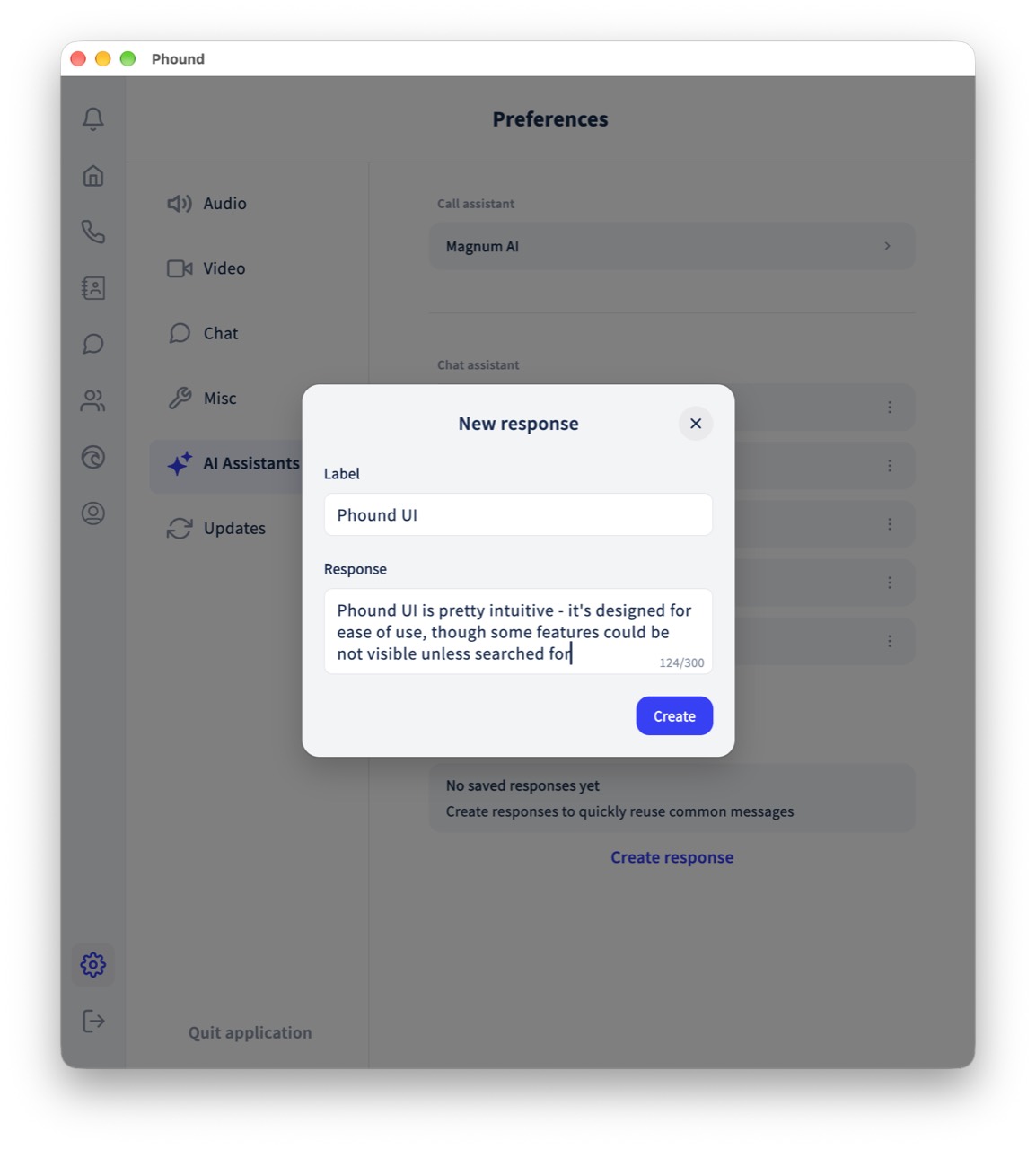
Use a label that makes the response easy to recognize. Examples include Business hours, Appointment confirmation, Shipping update, or Support follow-up.
Use a Canned Response in a Message
- Open Chat and select a conversation.
- Right-click the message field at the bottom of the conversation.
- Select Canned responses.
- Select the label for the response you want to use.
- Review the message field and make any conversation-specific changes.
- Select Send when the message is ready.
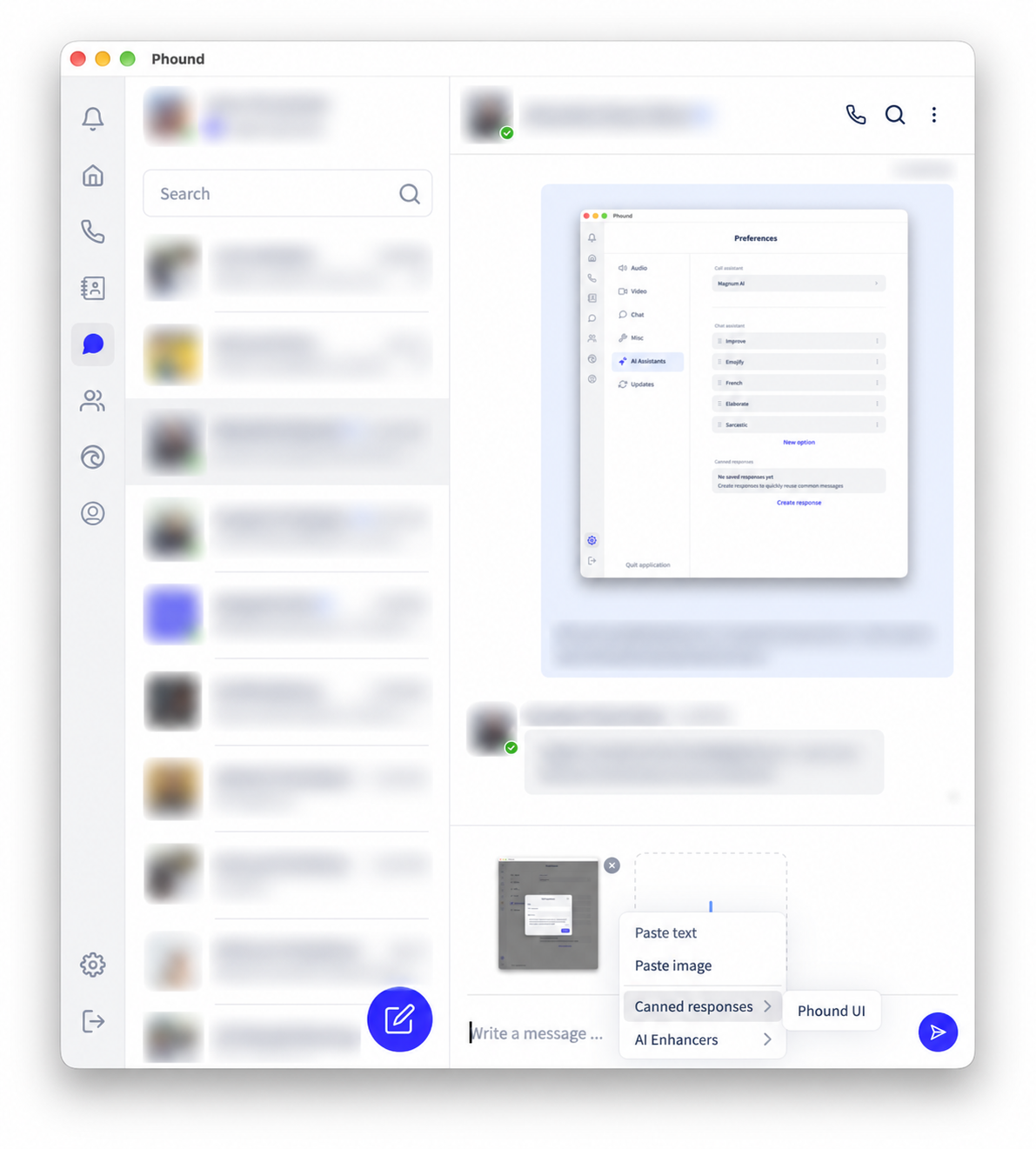
Opening the context menu does not send a message. Always review names, dates, prices, links, and other details before sending saved text to a contact.
Manage Saved Responses
Return to Preferences > AI Assistants > Canned responses to manage the saved list. Use the controls shown beside a response to edit, reorder, or remove it.
Changes affect the response available from the message-field context menu. Review the updated text before using it in a conversation.
Canned Responses and AI Enhancers Are Different
The message-field context menu contains two different tools:
| Tool | What it does |
|---|---|
| Canned responses | Inserts text you previously saved. The wording stays the same until you edit the saved response or change the draft. |
| AI Enhancers | Uses a selected Chat assistant action to rewrite draft text. The result can vary and should be reviewed. |
See Customize Chat Assistant Actions for AI rewrite actions such as Improve, Emojify, or a custom option.
Troubleshooting
The Canned responses menu does not appear
- Confirm that you are using the current Phound Desktop app.
- Right-click inside the message field, not on a sent or received message.
- Open Preferences > AI Assistants and confirm that at least one canned response has been created.
- Close and reopen the conversation after creating or changing a response.
- If the feature is still missing, check Preferences > Updates and include the installed version when reporting the problem.
The Create button is unavailable
Complete both the Label and Response fields. Confirm that the response does not exceed the displayed 300-character limit.
The saved wording needs to change for one conversation
Choose the canned response, then edit the text in the message field before sending it. To change the reusable version, return to Preferences > AI Assistants > Canned responses and edit the saved response.
Frequently Asked Questions
Are canned responses the same as quick replies?
They serve a similar purpose: quickly reusing a common message. In Phound Desktop, the feature is named Canned responses.
Are canned responses generated by AI?
No. A canned response is text that you create and save. Use AI Enhancers when you want a Chat assistant action to rewrite draft text.
Can I change a canned response before sending it?
Yes. Review and edit the message field after choosing the saved response, then select Send when it is ready.
For general messaging instructions, see Send and Receive Texts. For other desktop settings, see Desktop Preferences, Notifications, and Updates.