Phound lets you choose meeting audio and video devices, adjust levels, reduce background noise, change how your own camera preview appears, and apply a virtual background from the live desktop meeting window.
Open Audio Settings
- In a live meeting, select the arrow beside Mute.
- Choose a microphone and speaker from the quick menu.
- Select Audio settings for the complete controls.
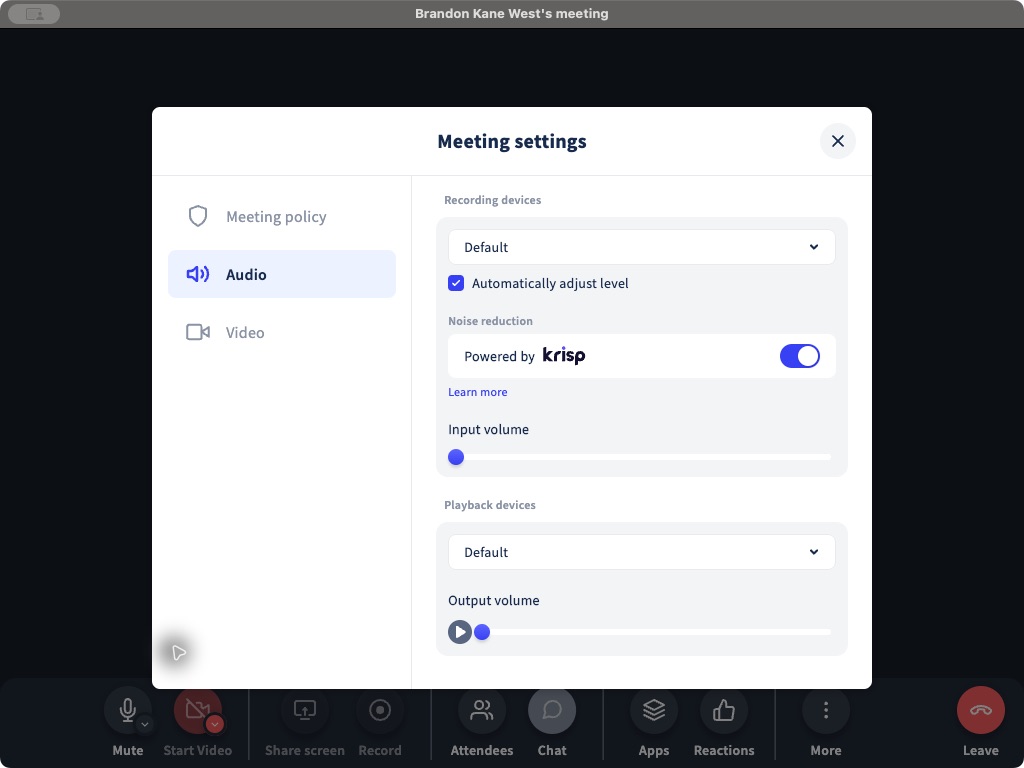
The Audio tab includes:
- Recording devices for microphone selection.
- Automatically adjust level for microphone input.
- Noise reduction, powered by Krisp in the desktop app.
- Input volume for your microphone.
- Playback devices for speaker selection.
- Output volume for meeting audio.
The quick menu also provides Disable audio when you do not want the meeting connected to a microphone or speaker.
Open Video Settings
- Select the arrow beside Start Video.
- Choose Video settings.
You can also select Virtual background from the quick menu to jump directly to the background controls.
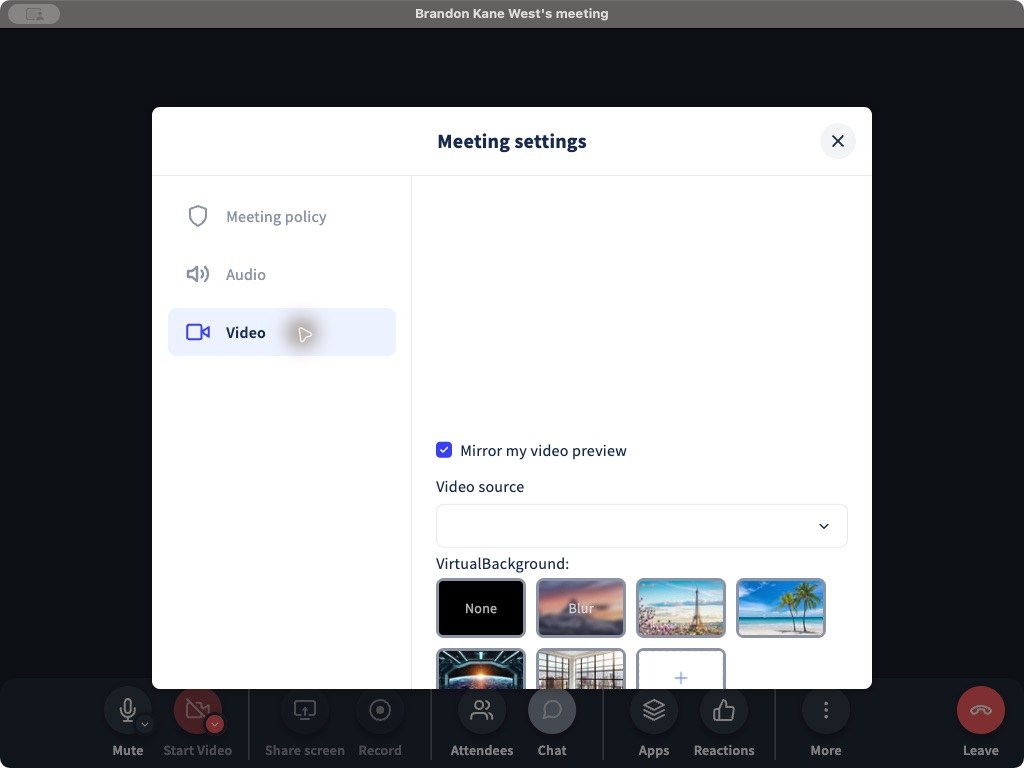
Choose a Camera or Mirror Your Preview
- Use Video source to select an available camera.
- Turn Mirror my video preview on when you want your own camera preview flipped horizontally, like looking in a mirror.
This is a local preview setting. It does not start screen sharing, share your desktop or application windows, or apply a virtual background. Use Share screen in the meeting toolbar when you want other participants to see content from your screen.
Choose a Virtual Background
The Video tab provides:
- None for the original camera view.
- Blur to soften the room behind you.
- Built-in background images.
- The + tile for choosing a custom background from your device.
Select the background you want before turning on video, then review your preview.
If No Camera Appears
Confirm that the camera is connected and available to Phound. Also review the macOS camera permission for the Phound desktop app. If the camera is being used by another application, close that application and check Video source again.
For the rest of the live meeting toolbar, see In-Meeting Controls.