A host is the person with the main meeting-control role. A co-host is an attendee the host appoints to help. Host mode is a separate permission policy that controls what other participants can do.
This distinction matters. Making someone a co-host gives that person a meeting role. Turning on Host mode changes the rules for the meeting, but it does not make every attendee a host or co-host.
Open Meeting Settings
To configure a new scheduled meeting:
- From Home, find the Meetings section.
- Select New.
- Select Schedule new meeting.
- Enter the meeting details and add attendees.
- Expand Meeting settings.
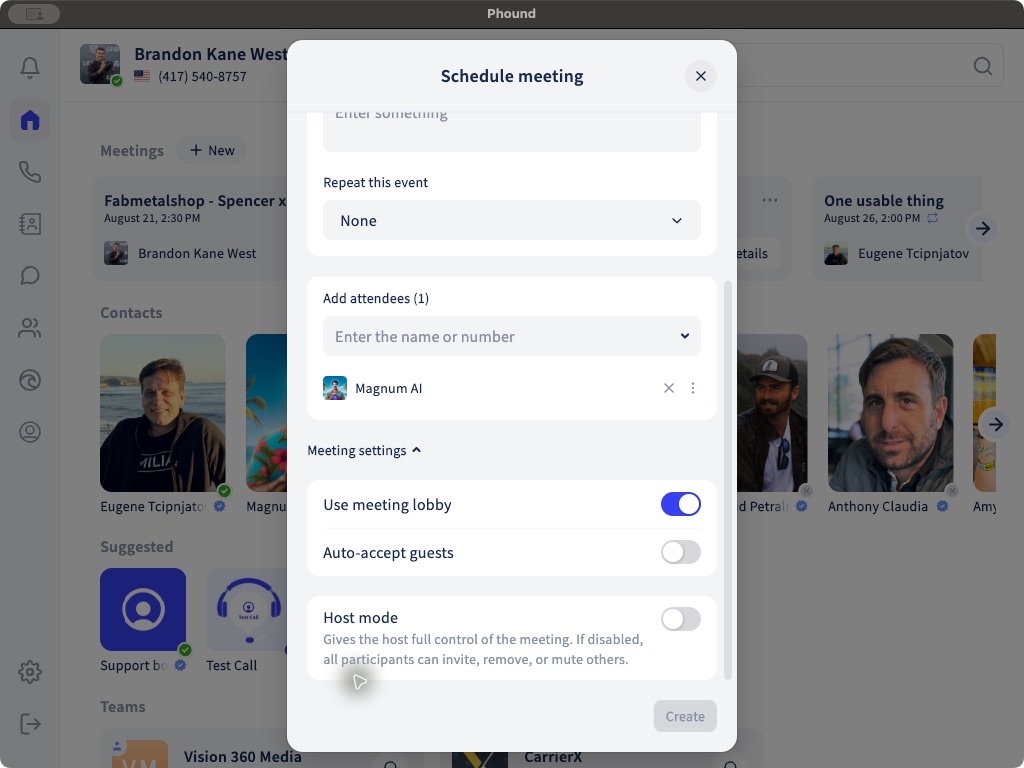
For an existing scheduled meeting, select View Details, select the edit icon, expand Meeting settings, and select Save after making changes.
Control How Guests Enter
Use Meeting Lobby
Turn on Use meeting lobby when guests should wait before entering the meeting.
Auto-Accept Guests
Turn on Auto-accept guests when guests should enter without being admitted manually. Review this together with the lobby setting so the entry experience matches what you want.
Understand Host Mode
Host mode gives the host full control of the meeting. The desktop app explains that when Host mode is off, all participants can invite, remove, or mute other participants.
Turn on Host mode when participant management and meeting policies should stay under host control.
You can also change Host mode during a live meeting:
- Select More in the meeting toolbar.
- Select Meeting settings.
- Select Meeting policy.
- Turn on Host mode.
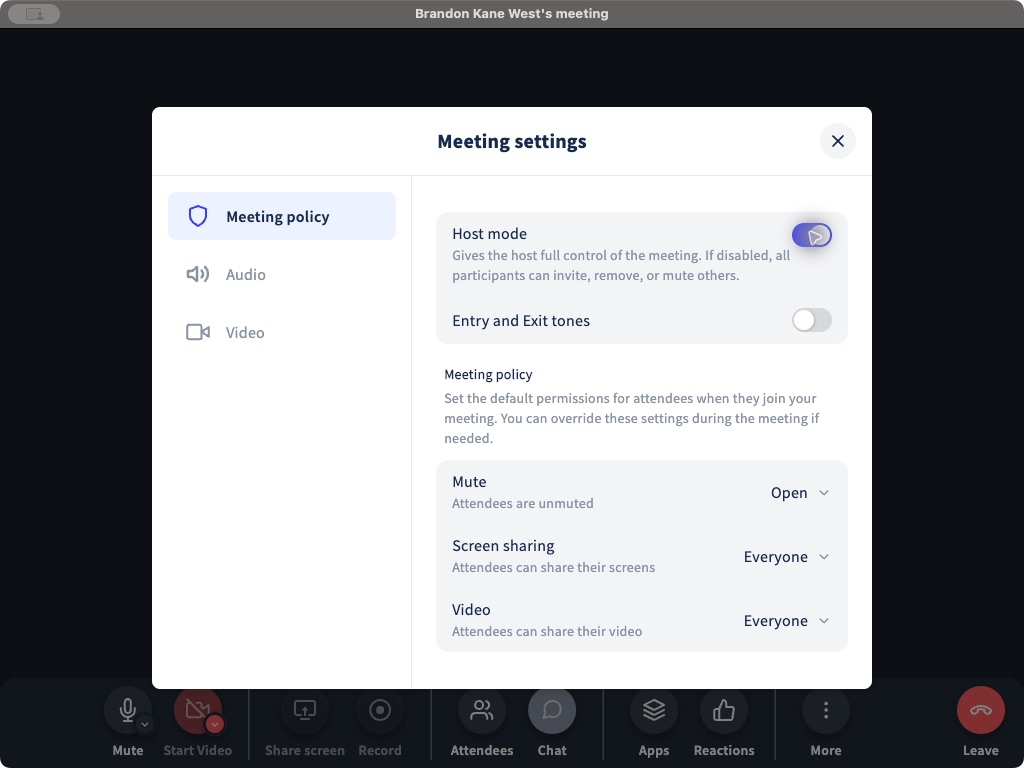
When Host mode is on, the host can review these controls:
- Entry and Exit tones controls whether Phound plays a tone when participants enter or leave.
- Mute: Open lets attendees join unmuted.
- Mute: Mute all mutes attendees, but lets them unmute themselves.
- Mute: Lecture mode mutes attendees and prevents them from unmuting themselves.
- Screen sharing: Everyone lets attendees share their screens.
- Screen sharing: Hosts only limits screen sharing to the host and co-hosts.
- Video: Everyone lets attendees share video.
- Video: Hosts only limits video sharing to the host and co-hosts.
Phound notes that these are default attendee permissions and can be changed during the meeting.
What Hosts and Co-Hosts Can Do
The exact controls available depend on the meeting policy. In the desktop meeting window:
- Recording is limited to the host and co-hosts.
- Screen sharing follows the Everyone or Hosts only policy.
- The host can use Spotlight to pin selected speakers for everyone.
- Host mode controls whether ordinary participants can invite, remove, or mute others.
If Phound displays a host-only or host-and-co-host notice when you select a control, your current role or the meeting policy does not allow that action.
Make an Attendee a Co-Host
The person must be added as an attendee before you can make them a co-host.
- Add the person under Attendees.
- Select the three-dot menu beside the attendee's name.
- Select Make Co-Host.
- Create or save the meeting.
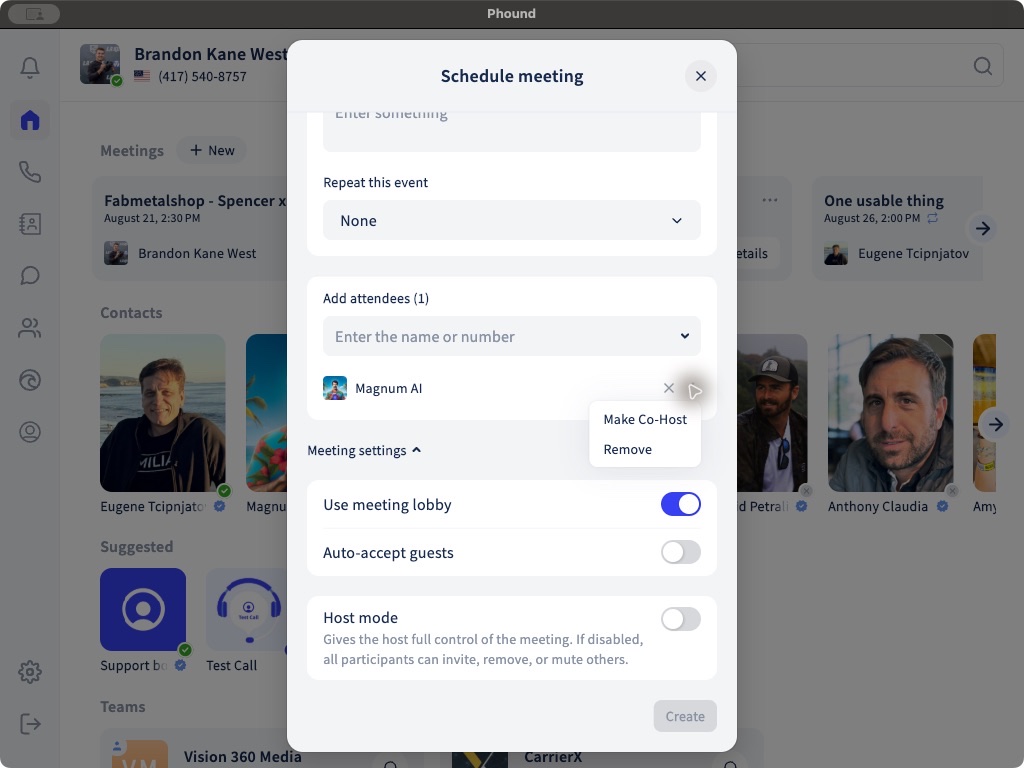
You can also assign a co-host after a meeting has been scheduled. Open View Details, find the attendee, open the three-dot menu beside their name, and select Make Co-Host.
Use a co-host when another attendee should help manage the meeting, especially when Host mode is enabled. The original host remains identified as the meeting host.
Frequently Asked Questions
Why don't I see Make Co-Host?
Confirm that the person has been added as an attendee and that you are the meeting host. Open the three-dot menu next to the attendee, not the menu for the entire meeting.
Can I assign a co-host after scheduling the meeting?
Yes. Open the meeting's View Details panel, then use the menu beside the attendee's name.
Is Host mode the same as being the host?
No. The host is a meeting role. Host mode is a policy switch that changes participant permissions.
What happens when Host mode is off?
All participants can invite, remove, or mute other participants. Turn on Host mode when those controls should remain with the host and appointed co-hosts.
What is the difference between the lobby and Auto-accept guests?
The lobby provides a waiting step before entry. Auto-accept lets guests enter without the host admitting each person manually.
For the live toolbar and attendee controls, see In-Meeting Controls. For microphones, cameras, and backgrounds, see Audio, Video, and Virtual Backgrounds.
For starting, scheduling, and inviting people to meetings, see Hosting Meetings.