Teams give a group a shared profile, member list, team chat, and optional phone number in Phound. The desktop app separates Teams owned by you from Teams you're in, so the management options you see depend on whether you own the team.
Find Your Teams
- Open the Phound desktop app.
- Select Teams in the left sidebar.
- Choose a team from Teams owned by you or Teams you're in.
Selecting a team opens its profile, members, and Team chat.
Create a Team
- Open Teams.
- Select the blue + button.
- Enter a team name.
- Optionally add a photo, description, and social media links.
- Select the checkmark in the upper-right corner to create the team.
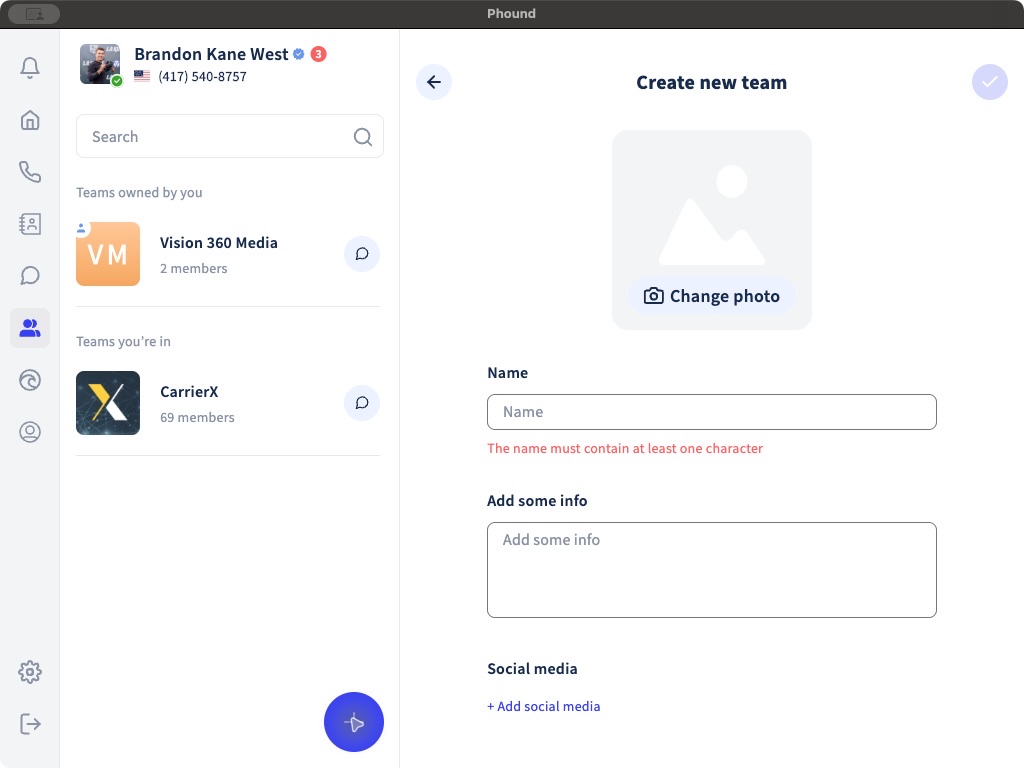
The person who creates the team becomes its owner. The new team appears under Teams owned by you.
Manage a Team You Own
Open the team, select the three-dot menu, and choose Manage team.
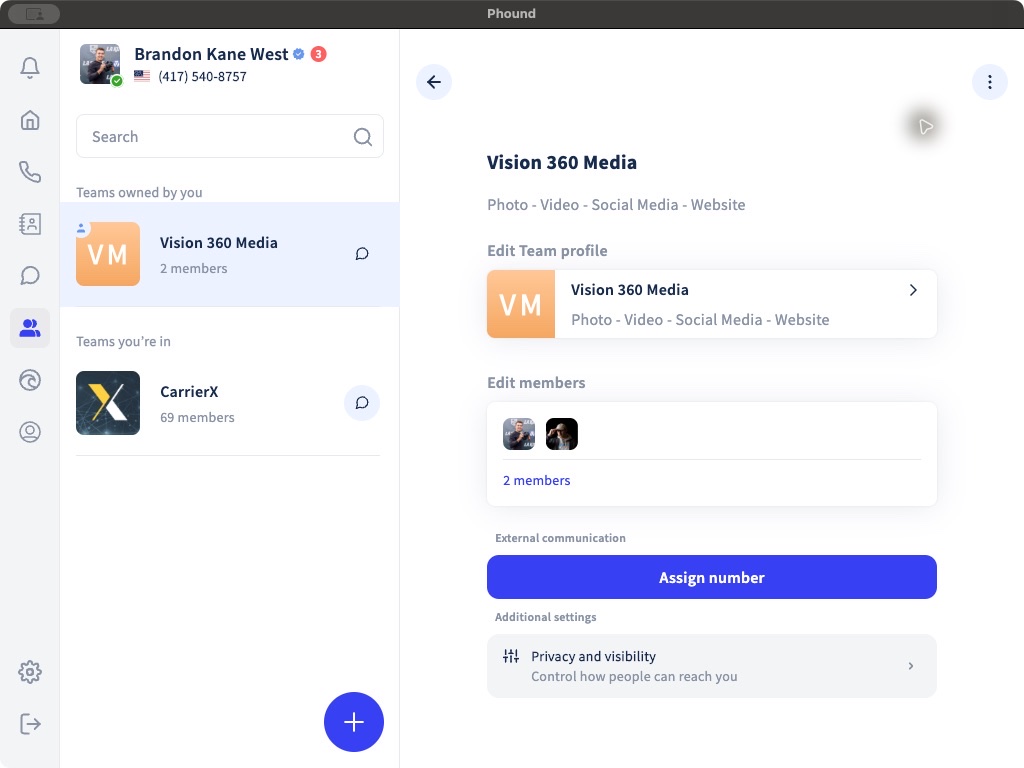
From this screen you can:
- Edit the team's profile and description.
- View or edit the member list.
- Assign a phone number for external communication, when available for your account.
- Open Privacy and visibility.
If you do not see Manage team, you may be a member rather than the team owner.
The team owner's three-dot menu also provides Edit profile, View members, Invite members, Test call to this team, and Delete team.
Use Team Chat
Select a team, then select Team chat. This opens the shared conversation for the team so members can communicate in one place.
Frequently Asked Questions
Why can't I manage a team?
Teams you own appear under Teams owned by you. A team that appears under Teams you're in is managed by its owner, so some controls may not be available to you.
Can a team have its own phone number?
A team owner can open Manage team and select Assign number. See Assign a Number to a Team before reassigning a number that is already in use.
How do I change who can find or join the team?
Open Manage team, then select Privacy and visibility. See Team Privacy, Join Policies, and Restrictions for every available option.
Can I delete a team?
The team owner can open the three-dot menu and select Delete team. Review the team and its members carefully before confirming deletion.