Team owners can control whether a team appears in the public directory, whether new members need approval, and which users can communicate with the team.
Open Teams, select a team you own, then open the three-dot menu and choose Manage team > Privacy and visibility.
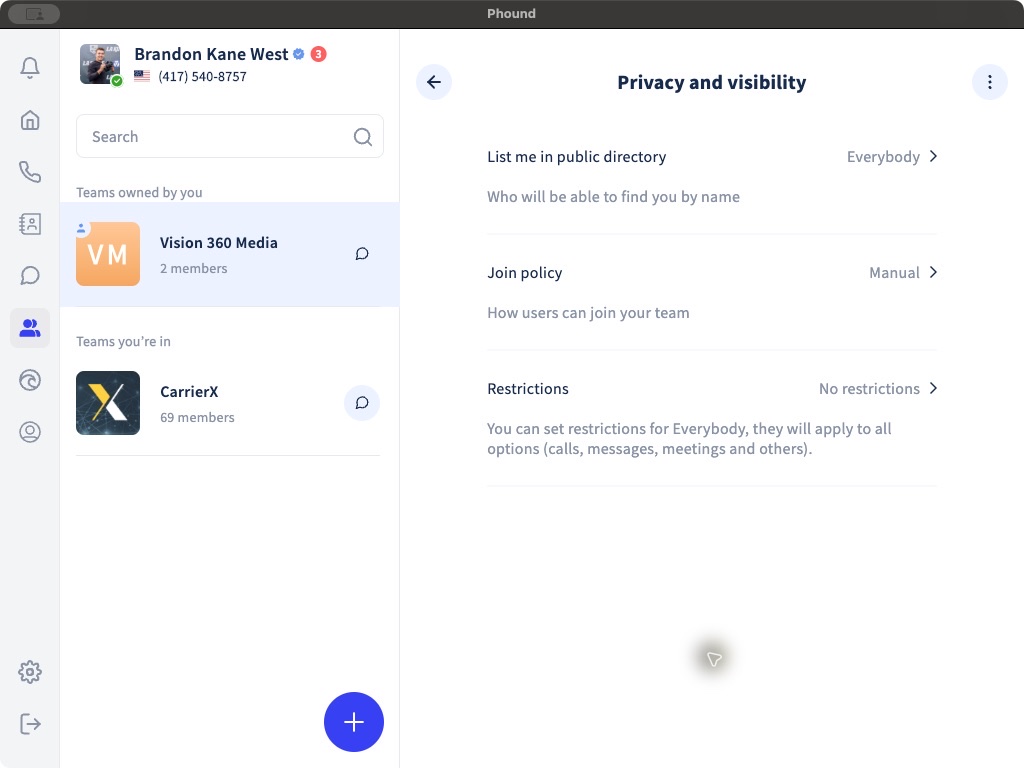
Public Directory Visibility
Select List me in public directory.
- Nobody makes the team unavailable through name search.
- Everybody lets people find the team by name. Additional restrictions can still apply.
Directory visibility controls discovery. The join policy controls what happens after someone finds or receives an invitation to the team.
Choose a Join Policy
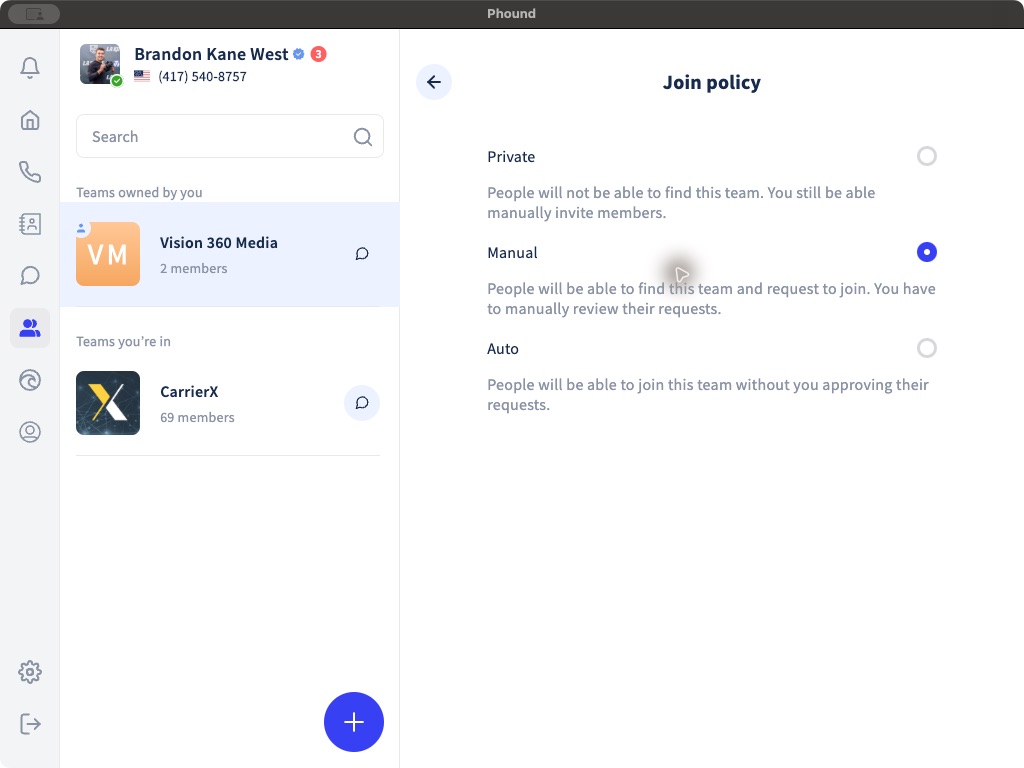
| Join policy | What it means |
|---|---|
| Private | People cannot find the team. The owner can still invite members manually. |
| Manual | People can find the team and request to join. The owner reviews each request. |
| Auto | People can join without the owner approving each request. |
Use Private for invitation-only membership, Manual when the owner should approve requests, and Auto only when open membership is appropriate.
Choose Communication Restrictions
Restrictions apply to calls, messages, meetings, and other communication options.
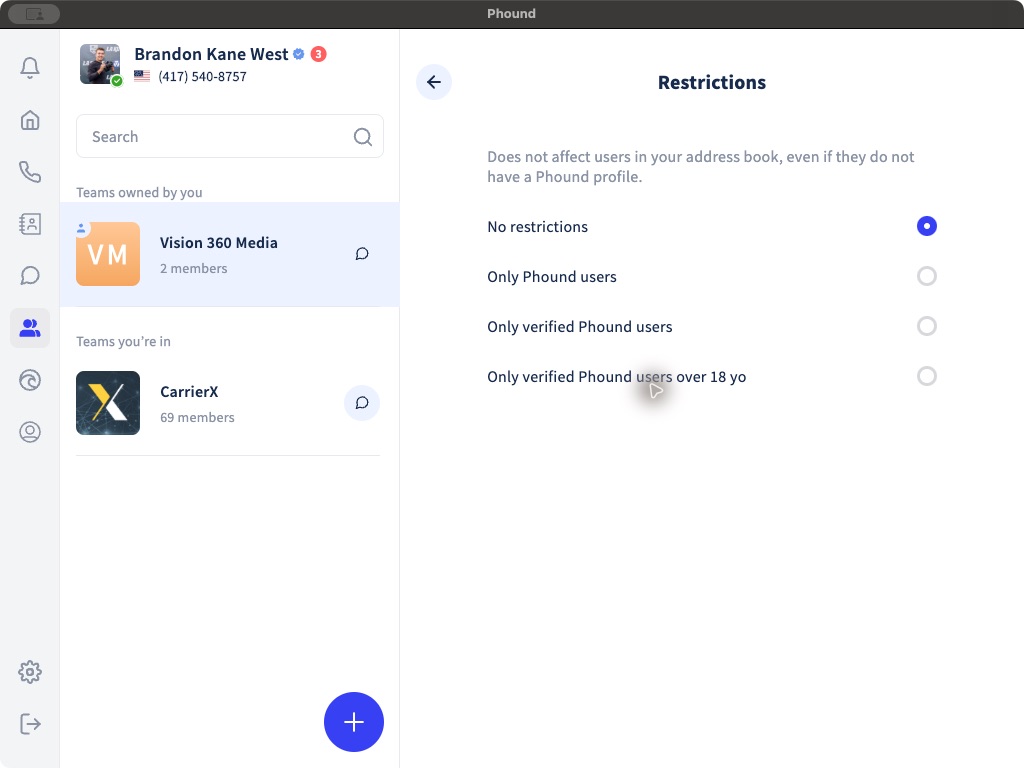
The available choices are:
- No restrictions.
- Only Phound users.
- Only verified Phound users.
- Only verified Phound users over 18 yo.
Phound notes that this restriction does not affect people in your address book, even if they do not have a Phound profile.
Review the Complete Combination
Directory visibility, join policy, and restrictions solve different problems. Review all three whenever the team's audience or purpose changes.
For invitation instructions, see Invite and Manage Team Members.