K

Voicemail Setup and Management

How to set up, customize, and manage voicemail for your Phound numbers.

Voicemail Setup and Management

Voicemail is an essential part of any phone number, and Phound gives you full control over how each of your numbers handles missed calls. You can record custom greetings, set up separate voicemail inboxes for each persona, read transcriptions of your messages, and manage your recordings — all from within the app.

This guide covers everything you need to know about setting up and managing voicemail in Phound, from your initial configuration to day-to-day management.


Setting Up Voicemail

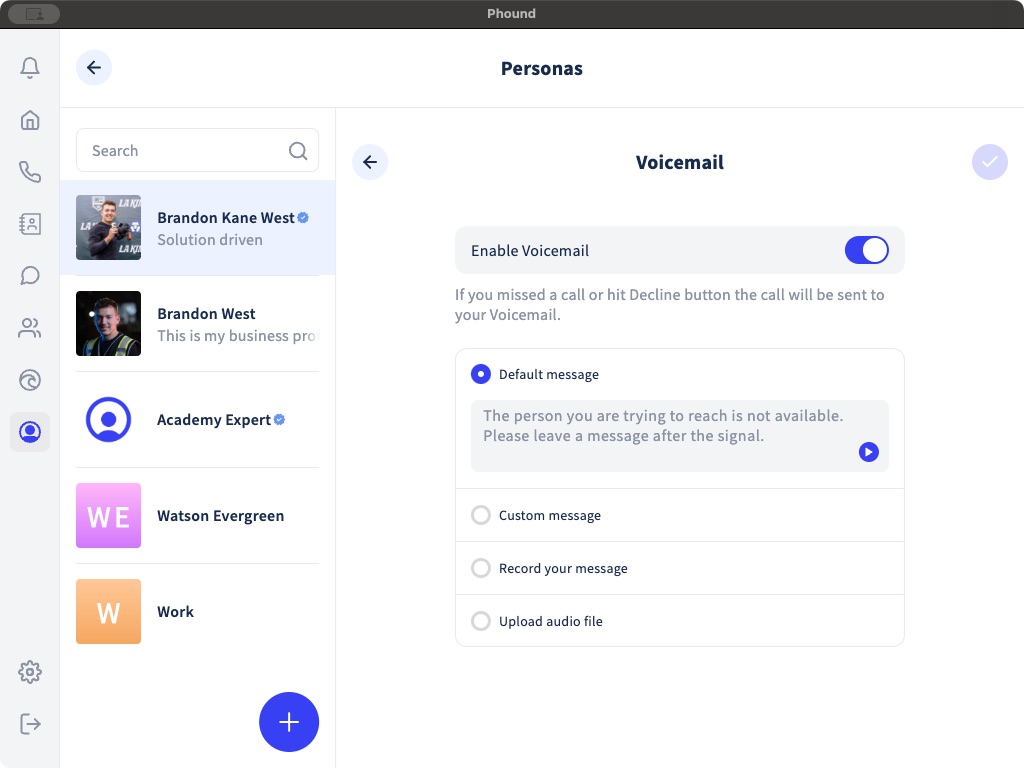
When you create a new persona and assign it a phone number, Phound enables a default voicemail greeting for that number. Callers who reach your voicemail will hear a generic greeting that reads your Phound number back to them and invites them to leave a message.

While the default greeting works, recording a custom greeting makes a much better impression — especially for business personas.

How to Record a Custom Greeting

Follow these steps to set up a personalized voicemail greeting for any persona:

  1. Open the Phound app and navigate to Settings.
  2. Tap Personas and select the persona you want to configure.
  3. Tap Voicemail in the persona settings menu.
  4. Tap Record Greeting.
  5. Tap the record button and speak your greeting into your device's microphone.
  6. When you are finished, tap Stop to end the recording.
  7. Play back the recording to review it. If you are not satisfied, tap Re-record to try again.
  8. Tap Save to set your new greeting.

Your custom greeting is now active. Anyone who calls this persona's number and reaches voicemail will hear your recording.

Tip: Keep your greeting concise — 15 to 20 seconds is ideal. Include your name (or business name), let the caller know they have reached the right number, and ask them to leave a message. For example: "Hi, you've reached [Name] at [Business]. I'm not available right now, but please leave a message and I'll get back to you as soon as possible."


Per-Persona Voicemail

One of Phound's standout features is the ability to configure separate voicemail greetings and inboxes for each persona. This means your business callers hear a professional greeting, your personal contacts hear a casual message, and each set of voicemails stays organized in its own inbox.

Why Per-Persona Voicemail Matters

Imagine a potential client calls your business number and hears a casual personal greeting — or a friend calls your personal number and hears a stiff corporate message. Per-persona voicemail eliminates this problem entirely.

Each persona can have:

  • Its own custom greeting tailored to the audience for that number.
  • Its own voicemail inbox so messages are never mixed together.
  • Its own notification settings so you can prioritize business voicemails over personal ones, or vice versa.

Switching Between Voicemail Inboxes

To view voicemails for a specific persona:

  1. Open the Voicemail tab in the bottom navigation bar.
  2. Use the persona switcher at the top of the screen to select the persona whose voicemails you want to view.
  3. The list updates to show only voicemails left for that persona's number.

Tip: If you manage several personas, get in the habit of checking each voicemail inbox regularly. With per-persona separation, it is easy to overlook a message left on a persona you do not use daily.


Listening to Voicemails

When someone leaves a voicemail on one of your Phound numbers, you will receive a push notification on your device. Here is how to listen:

From the Notification

Tap the voicemail notification to open the Phound app directly to the voicemail message. Tap Play to listen.

From the Voicemail Inbox

  1. Open the Phound app and tap the Voicemail tab.
  2. Select the persona whose voicemail you want to check.
  3. Tap on the voicemail message you want to listen to.
  4. Tap the Play button to hear the recording.

Each voicemail entry displays:

  • The caller's phone number (or contact name, if saved in your address book)
  • The date and time the voicemail was received
  • The duration of the recording
  • A transcription of the message (if voicemail transcription is enabled)

You can listen to voicemails through your device's speaker, earpiece, or connected Bluetooth audio device.


Voicemail Transcription

Phound offers voicemail transcription powered by Magnum AI, which converts voicemail audio into readable text. This feature is incredibly useful when you are in a meeting, a loud environment, or simply prefer reading over listening.

How Transcription Works

When a voicemail is received, Magnum AI processes the audio and generates a text version of the message. The transcription appears directly beneath the voicemail entry in your inbox, so you can read the content at a glance without pressing play. Magnum AI also powers other intelligent features in Phound, including call summaries and transcription for recorded calls.

Enabling Voicemail Transcription

Voicemail transcription may be enabled by default depending on your plan. To check or toggle the setting:

  1. Go to Settings > Personas and select the persona.
  2. Tap Voicemail.
  3. Find the Transcription toggle and make sure it is turned on.

Transcription Accuracy

Voicemail transcription uses automated speech recognition, which means it is not perfect. Accuracy depends on factors like:

  • The caller's voice clarity — Clear, slow speech transcribes more accurately.
  • Background noise — Noisy environments reduce transcription accuracy.
  • Accents and dialects — Strong accents may result in some words being misinterpreted.
  • Audio quality — Low-quality phone connections can affect recognition.

Transcriptions are best used as a quick reference to understand the gist of a message. For important voicemails, we recommend listening to the full audio recording to catch any nuances the transcription may have missed.

Warning: Voicemail transcription is not guaranteed to be 100% accurate. Do not rely solely on transcriptions for critical details like phone numbers, addresses, or appointment times. Always listen to the original recording when accuracy matters.


Managing Your Voicemails

Over time, your voicemail inbox will accumulate messages. Here is how to keep things organized:

Marking Voicemails as Read

New voicemails appear with an unread indicator. Tapping on a voicemail to view or play it automatically marks it as read. You can also swipe on a voicemail and select Mark as Read without listening to it.

Deleting Voicemails

To delete a voicemail, open the entry, tap the Delete button (trash icon), and confirm. To delete multiple voicemails, tap Edit or Select in the inbox, check the messages you want to remove, and tap Delete.

Warning: Deleted voicemails cannot be recovered. If a voicemail contains important information, save the relevant details before deleting.

Returning a Call from Voicemail

If a voicemail includes a callback request, you can return the call directly from the voicemail screen:

  1. Open the voicemail entry.
  2. Tap the Call Back button or tap the caller's phone number.
  3. The call will be placed from the same persona that received the voicemail.

This ensures the caller sees the same number they originally dialed when you call them back.


Voicemail Settings and Customization

Beyond recording a greeting, Phound offers several voicemail settings you can adjust per persona:

Ring Time Before Voicemail

You can control how long your phone rings before a call is sent to voicemail. The default is approximately 25 seconds, but you can adjust this in the voicemail settings:

  1. Go to Settings > Personas and select the persona.
  2. Tap Voicemail.
  3. Adjust the Ring Duration slider to your preference.

A shorter ring time sends callers to voicemail faster, which is useful if you prefer to screen calls. A longer ring time gives you more time to answer.

Voicemail Notifications

You can customize how you are notified about new voicemails for each persona — including push notifications, sounds, and badge counts. These settings can be configured per persona under Settings > Personas > [Persona Name] > Notifications.

Tip: For business personas, consider enabling all notification options so you never miss an important voicemail. For personal personas, you might prefer silent notifications that you check on your own schedule.


Troubleshooting Voicemail Issues

  • Callers cannot leave a message — Verify voicemail is enabled under Settings > Personas > Voicemail.
  • No voicemail notifications — Check that push notifications are enabled for Phound in your device settings.
  • Greeting not playing — Re-record and save your greeting. If the issue persists, delete the greeting and record a new one.
  • Transcription not appearing — Confirm transcription is enabled in voicemail settings. Transcriptions may take a few moments to process.

For more help with calling features in Phound, see our guides on how calling works and how to make and receive calls.


Still Need Help?

If you need assistance with voicemail setup or management, we are here to help:

  • Contact Support — Reach our team via Settings > Help & Support in the app.
  • Search the Knowledge Base — Use the search bar at the top of any page to find answers to specific questions.
  • Check your internet connection — Voicemail features require an active data connection to retrieve messages and update settings.

Your voicemail is set up, personalized, and ready to catch every call you miss. Now you can focus on calling back when it is convenient for you.

Was this helpful?

Still need help?

If you couldn't find what you were looking for, our support team is ready to assist. Contact Phound Support and we'll get back to you as soon as possible.