A team owner can invite people with a public join link or send a direct invitation to a Phound contact. Owners can also open a member's contact, send a direct message, or remove that person from the team.
Open the Member List
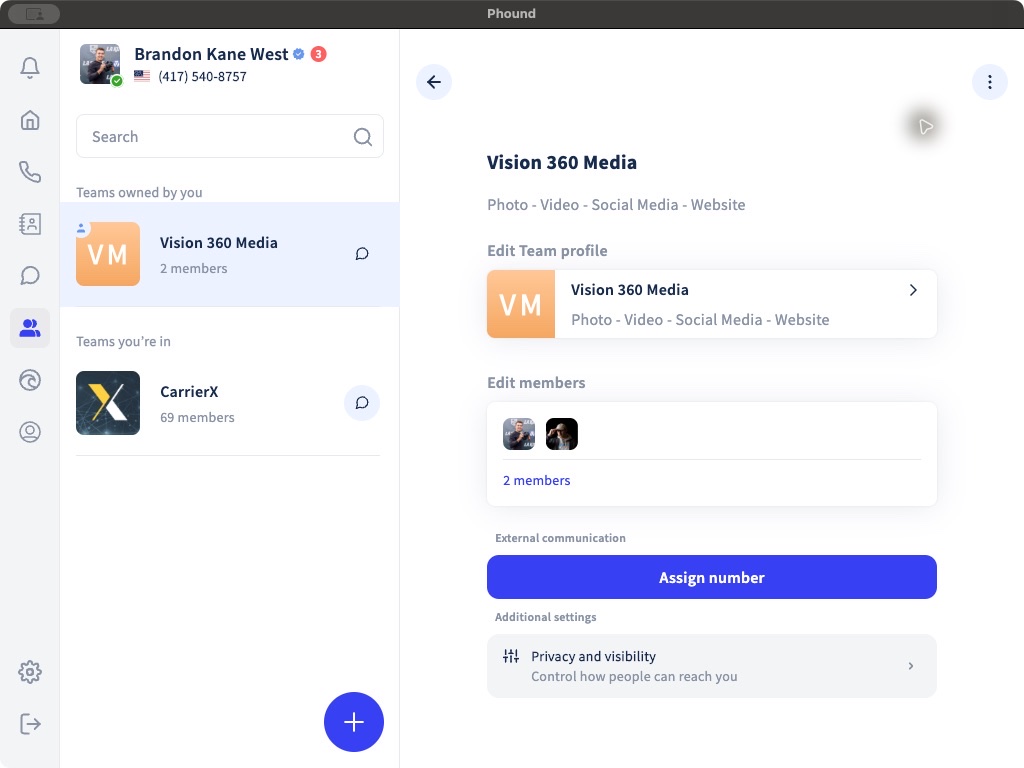
- Select Teams in the Phound desktop sidebar.
- Select a team under Teams owned by you.
- Select the member count, or open the three-dot menu and choose View members.
The Team members screen provides a search field, an Invite control, and a three-dot menu for each member.
Invite with a Join Link
- From the Team members screen, select Invite.
- Select Copy join link.
- Share the link with the intended people.
The team owner should review the team's join policy before sharing the link. A Private, Manual, or Auto policy changes whether someone can find the team, request access, or join immediately.
Invite a Contact Directly
- Open Invite to your Team.
- Search or browse the contact list.
- Select Invite beside the intended person.
Selecting Invite sends the invitation. Review the contact before selecting it.
Manage an Existing Member
Open the three-dot menu beside a member. Depending on your role, the menu provides:
- Open Contact to view the person's Phound profile.
- Message to start a direct conversation.
- Remove from Team to remove that person from the team.
Removing a member is different from deleting the team. The other members and the team remain available.
Why Some Controls Are Missing
Teams under Teams owned by you provide owner controls. Teams under Teams you're in are managed by another owner, so you may be able to view members and use Team chat without being able to invite or remove people.
For approval and discovery rules, see Team Privacy, Join Policies, and Restrictions.