The Phound desktop app includes a problem-report form that can send a description, an image, and optional diagnostic logs to the Phound team.
Open the Form
- Select the gear in the left sidebar.
- Select Misc.
- Under Support, select Report a problem.
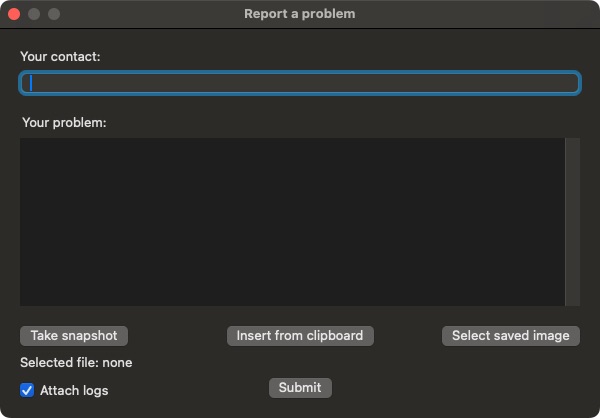
Complete the Report
- Enter a reliable email address or other requested contact information under Your contact.
- Under Your problem, explain what happened and what you expected.
- Include the exact steps that reproduce the problem.
- Add an image with Take snapshot, Insert from clipboard, or Select saved image when a visual will help.
- Decide whether to leave Attach logs selected.
- Review the description and attachment, then select Submit.
What to Include
A useful report answers these questions:
- Which Phound area were you using?
- What did you select immediately before the problem?
- What happened instead of the expected result?
- Does it happen every time?
- Which Phound version is installed?
Find the version under Preferences > Updates. See Desktop Preferences, Notifications, and Updates.
About Attach Logs
Logs can help the development team diagnose unexpected behavior. They can also contain technical details about the app session. Review your organization's policies before attaching them, especially when the problem involves customer conversations or other sensitive work.
Do not place passwords, verification codes, payment information, or private customer data in the description or screenshot.
If the Form Will Not Open
Use the verified support options on Contact Phound Support. Include the same reproduction steps, app version, and a screenshot when possible.