Call Recording
Phound's call recording feature lets you save audio of your phone conversations for reference, record-keeping, or peace of mind. Whether you need to revisit the details of a business call, keep a record of a service agreement, or simply want a backup of an important conversation, call recording puts that capability in your hands.
However, recording phone calls comes with legal responsibilities. Before you hit record, it is essential to understand the laws that apply to you and the person on the other end of the call. This guide covers how to use call recording in Phound, the legal landscape you need to navigate, and how to manage your saved recordings.
Legal Disclaimer
Warning: Recording phone calls without proper consent may violate federal and state laws. Phound provides call recording as a tool, but you are solely responsible for complying with all applicable laws and regulations regarding call recording in your jurisdiction and the jurisdiction of the person you are speaking with. Phound does not provide legal advice. If you are unsure about the legality of recording a specific call, consult with a qualified attorney before using this feature.
Understanding Call Recording Laws
Call recording laws in the United States are divided into two categories: one-party consent and two-party consent (sometimes called "all-party consent"). Understanding the difference is critical before you record any call.
One-Party Consent
In one-party consent states, you can legally record a phone call as long as at least one person on the call consents to the recording. Since you are a participant, your own consent is sufficient. You do not need to inform the other party that the call is being recorded.
Most U.S. states follow one-party consent rules, making it relatively straightforward to record calls in these jurisdictions.
Two-Party Consent (All-Party Consent)
In two-party consent states, all participants on a call must consent to the recording before it can begin. This means you must inform the other person (or people) that the call is being recorded and receive their agreement before you start.
As of the last update to this guide, the following states have two-party consent laws:
- California
- Connecticut
- Delaware
- Florida
- Illinois
- Maryland
- Massachusetts
- Michigan
- Montana
- Nevada
- New Hampshire
- Oregon
- Pennsylvania
- Vermont
- Washington
Warning: This list is provided for informational purposes and may not reflect the most current state of the law. Recording laws can change, and some states have nuances or exceptions. Always verify the current law in your state and the state of the person you are calling. When in doubt, the safest approach is to inform all parties and obtain consent before recording.
Interstate and Cross-Border Calls
When you are in one state and the person you are calling is in another, the situation becomes more complex. There is no universal rule for which state's law applies. Some courts apply the stricter standard, while others apply the law of the state where the recording is made. The safest approach is to follow the stricter of the two states' laws. If either party is in a two-party consent state, inform everyone on the call and get their agreement.
Federal Law
Federal law under the Electronic Communications Privacy Act follows a one-party consent standard. However, state laws can be stricter, and the stricter law generally applies.
Tip: The simplest way to stay on the right side of the law is to always announce that you are recording and ask for consent. A brief statement at the beginning of the call — such as "I'd like to record this call for my records, is that okay with you?" — takes only a few seconds and protects you regardless of which state's laws apply.
How to Enable Call Recording
Call recording in Phound is available as a feature that you can enable in your app settings. Here is how to turn it on:
Enabling the Feature
- Open the Phound app and go to Settings.
- Tap Calling.
- Find the Call Recording option and tap the toggle to enable it.
- Read and acknowledge the consent notice that appears. This notice reminds you of your legal obligation to comply with recording laws.
- Tap I Understand to confirm.
Once enabled, a recording control will be available on the call screen during active calls.
Recording a Call
With call recording enabled, here is how to record during a live call:
Starting a Recording
- During an active call, look for the Record button on the call screen. It appears alongside the other call controls (mute, speaker, keypad).
- Tap Record to start recording the call.
- A visual indicator (typically a red dot or flashing indicator and a timer) appears on your screen to confirm that recording is active.
Recording Notifications
When you start recording, Phound plays a brief audible tone that both you and the other party can hear. This tone confirms recording has started and provides notice to the other party. However, the tone is a supplementary safeguard — it is still your responsibility to verbally inform the other party and obtain their consent.
Tip: Even with the audible tone, best practice is to verbally tell the other party you are recording. The tone alone may not constitute adequate legal notice in all jurisdictions.
Stopping a Recording
To stop recording during a call:
- Tap the Record button again to stop the recording.
- The recording indicator disappears, and the recording is saved.
If you do not manually stop the recording, it ends automatically when the call ends. The complete recording — from the moment you tapped Record until the call ended or you stopped recording — is saved to your account.
Recording the Entire Call
If you want to record a call from the very beginning, tap the Record button as soon as the call connects. You can also enable an auto-record option (if available on your plan) that automatically starts recording every call. When auto-record is enabled, the notification tone plays at the beginning of every call.
Accessing Your Recordings
All call recordings are saved within the Phound app and organized by persona. Here is how to find and play them:
Viewing Your Recordings
- Open the Phound app and navigate to the Recents or Call History tab.
- Select the persona whose recordings you want to view.
- Calls that were recorded are marked with a recording icon (typically a microphone or waveform symbol).
- Tap on a recorded call to open its details.
Playing a Recording
On the call detail screen:
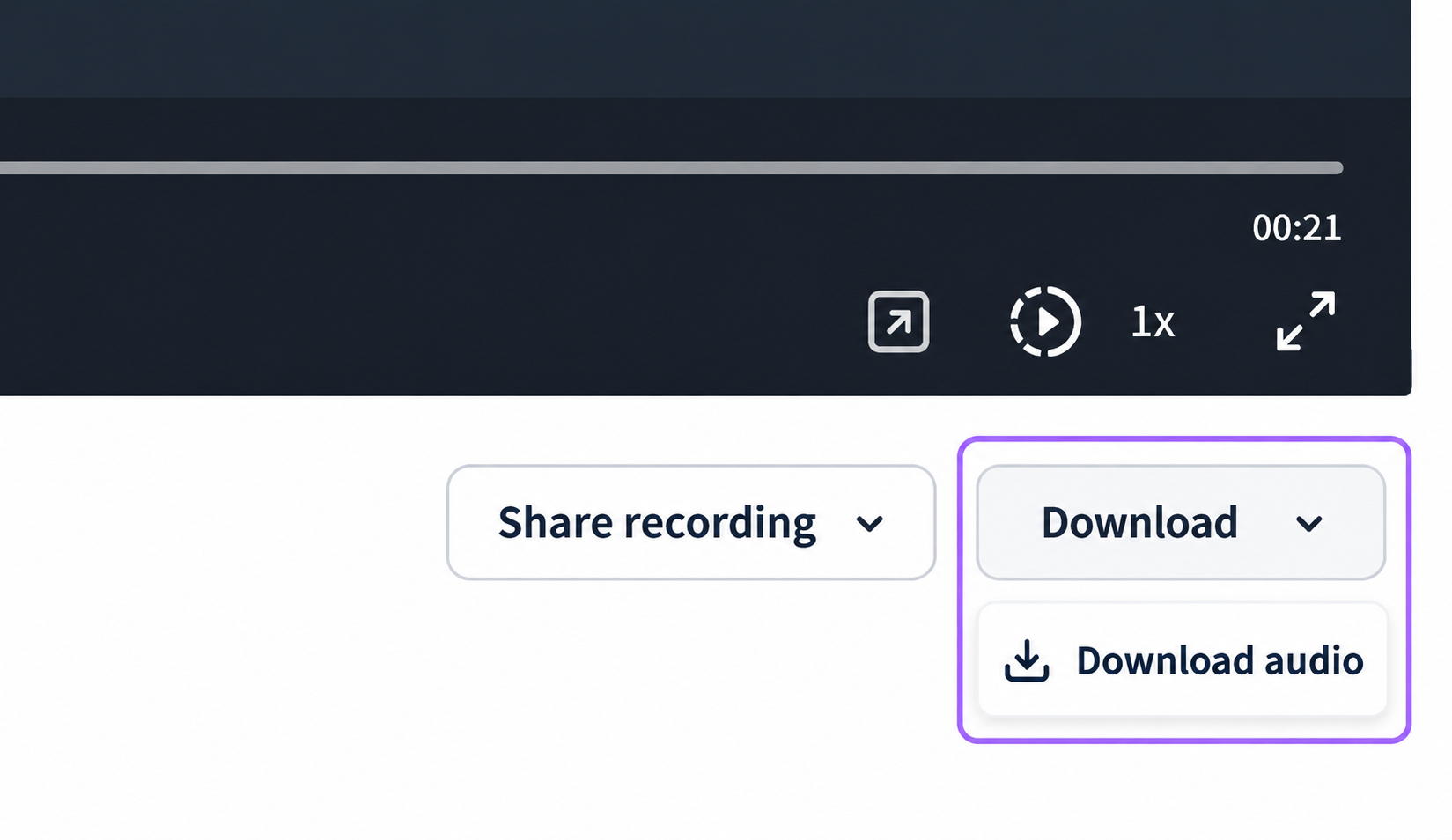
- Tap the Play button to listen to the recording.
- Use the scrub bar to skip forward or backward within the recording.
- Adjust volume using your device's volume controls or tap the speaker icon to switch between earpiece and speaker output.
Storage and Deletion
How Recordings Are Stored
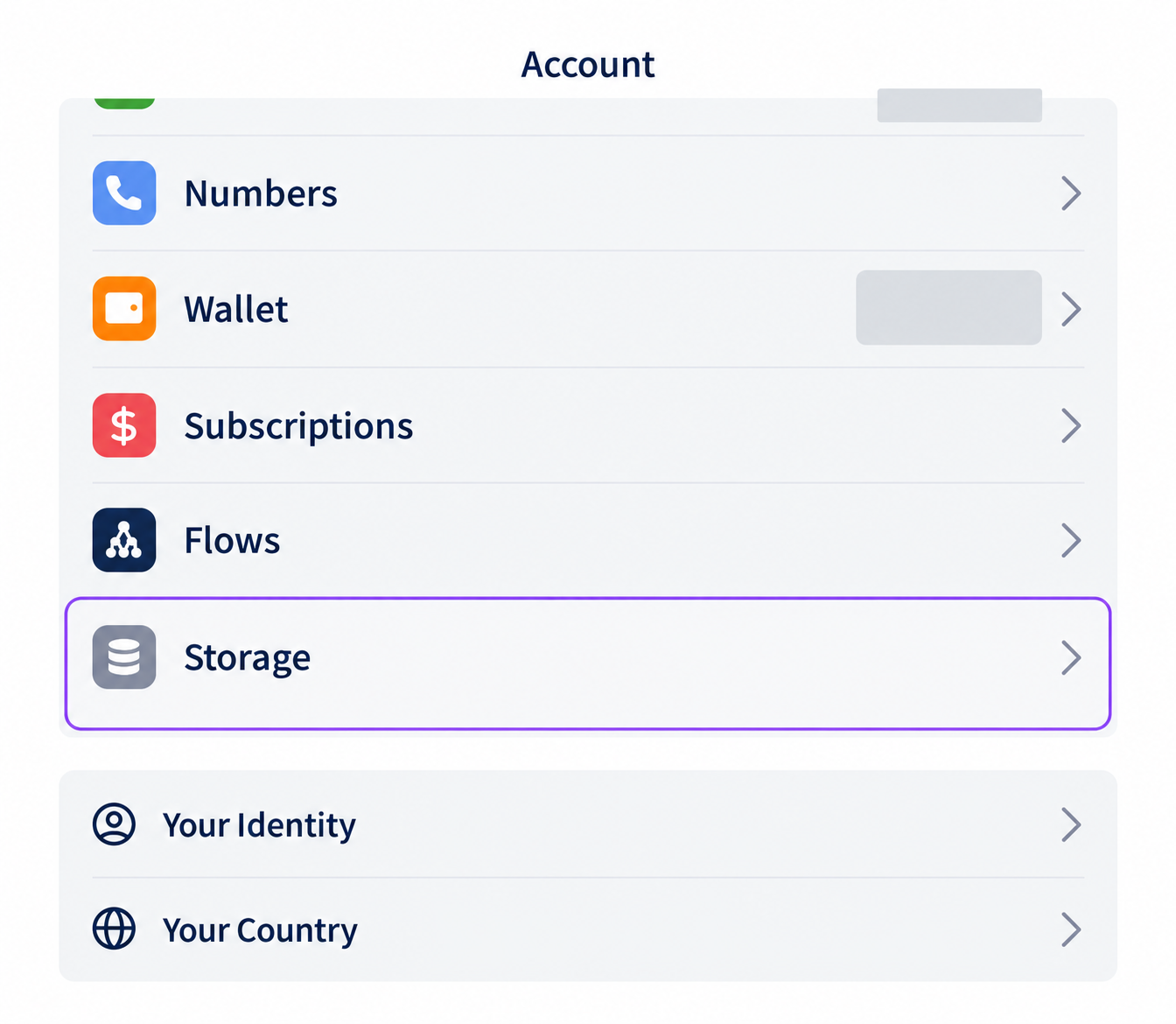
Call recordings are stored securely on Phound's servers and are accessible through the app as long as your account is active. Recordings are also cached locally on your device for faster playback. All recordings are encrypted in transit and at rest. For more information on how Phound handles your data, visit our privacy and security section.
Storage Limits
Depending on your Phound plan, there may be limits on how much recording storage is available. If you approach your storage limit, the app will notify you. You can free up space by deleting older recordings that you no longer need.
Deleting a Recording
To delete a call recording, navigate to the recorded call in your call history, open the call details, and tap the Delete Recording button (trash icon).
Warning: Deleted recordings cannot be recovered. Before deleting, make sure you have exported or saved any recordings that contain important information. Once deleted, the recording is permanently removed from both Phound's servers and your device.
Best Practices for Call Recording
Here are recommendations for using call recording responsibly and effectively:
- Always inform the other party. Telling someone you are recording is a matter of courtesy and legal protection.
- Get verbal consent on the recording. Start the recording, then state that the call is being recorded and ask the other person to confirm. This creates a record of their consent.
- Delete recordings you no longer need. This frees up storage space and reduces the amount of sensitive data stored on your account.
- Do not use recordings to harass or intimidate. Recording is a tool for record-keeping, not leverage.
Tip: For business users, establishing a standard call recording policy and informing callers at the beginning of each conversation can simplify compliance and set clear expectations.
Still Need Help?
If you have questions about call recording in Phound, we are available to assist:
- Contact Support — Reach our team via Settings > Help & Support in the app.
- Search the Knowledge Base — Find answers to specific questions using the search bar at the top of any page.
- Consult a legal professional — For questions about recording laws in your jurisdiction, we recommend speaking with a qualified attorney.
Call recording is a powerful feature when used responsibly. Stay informed about the law, respect the people you speak with, and Phound will handle the rest.