An ordinary reply and a STOP opt-out are different events. Decide how your campaign should handle both before adding customers.
Choose the Reply Setting
Open the campaign's three-dot menu, select Edit Campaign, and review Remove contact when they reply.
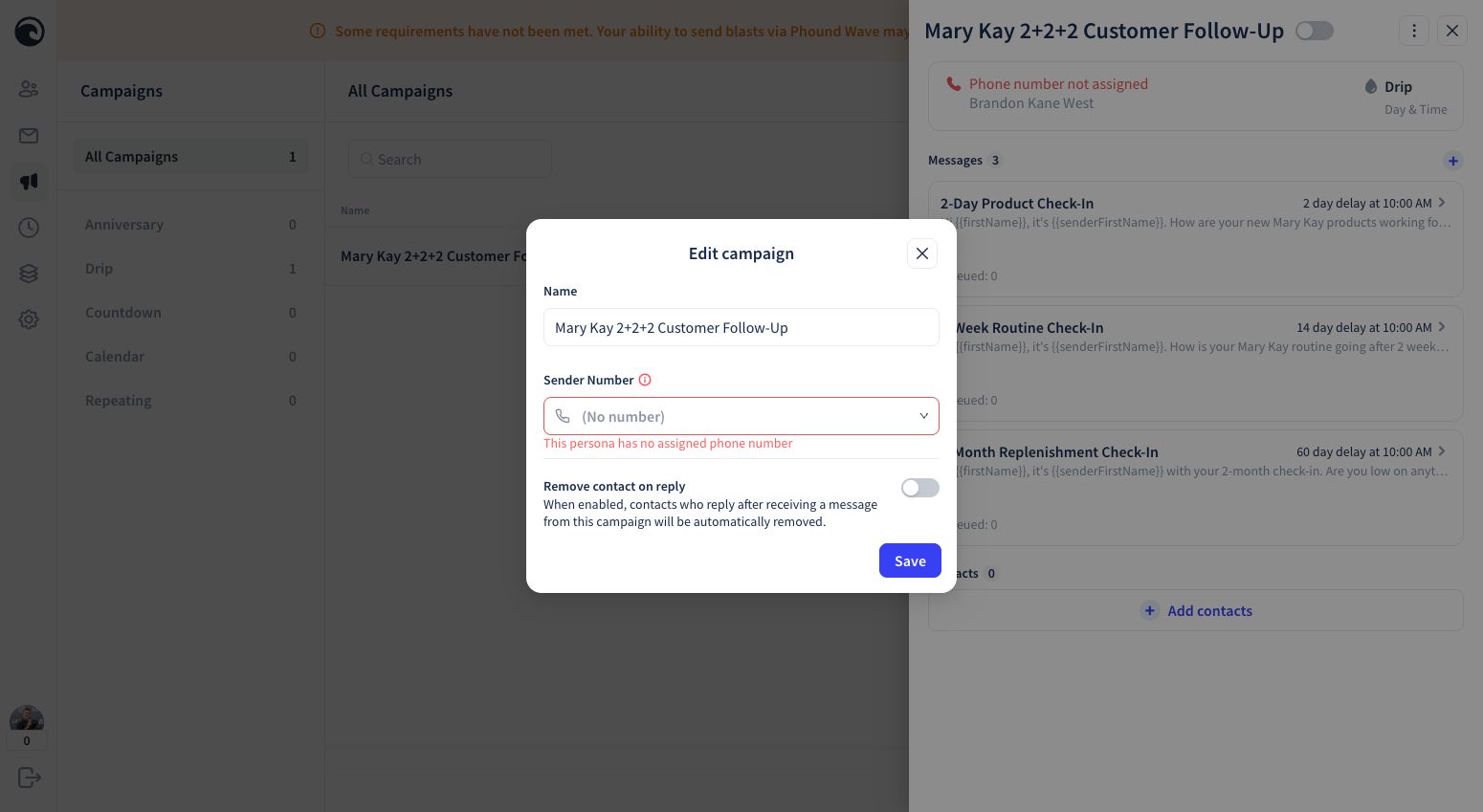
When the Setting Is On
An ordinary reply removes that contact from the remaining automated sequence. This is useful when a response means a person should take over the conversation.
For a personal customer follow-up such as the Mary Kay 2+2+2 campaign, this is usually the clearest starting point: once the customer replies, continue the conversation yourself instead of sending the remaining automated check-ins.
When the Setting Is Off
An ordinary reply does not automatically remove the contact from the remaining sequence, so later scheduled messages can still be delivered. Use this only when continued automation after a reply fits the experience you intend to provide.
STOP Is an Opt-Out
The Remove contact when they reply setting controls ordinary replies. A STOP request is an opt-out and must be respected independently of that campaign setting.
- Do not disable or work around Wave's STOP handling. The Mary Kay 2+2+2 starter does not repeat a Reply STOP sentence in every message body.
- Test the STOP experience with a number you own or are authorized to use.
- Do not manually re-add a contact who opted out unless you have a valid new consent process.
- If the contact's status is unclear, do not send and ask Phound Support for guidance.
Test the Behavior You Selected
- Keep the campaign Off.
- Add one authorized test contact.
- Test an ordinary reply and check whether the contact remains in the sequence.
- Test STOP and verify the opt-out behavior.
- Review the Timeline.
- Remove the test contact when finished.
See Test, Enable, and Pause a Campaign for the full safety checklist, or return to Mary Kay 2+2+2 Follow-Up.