The Timeline brings upcoming Wave sends into one chronological view. Use it after scheduling a Blast, adding contacts to a campaign, or changing message timing.
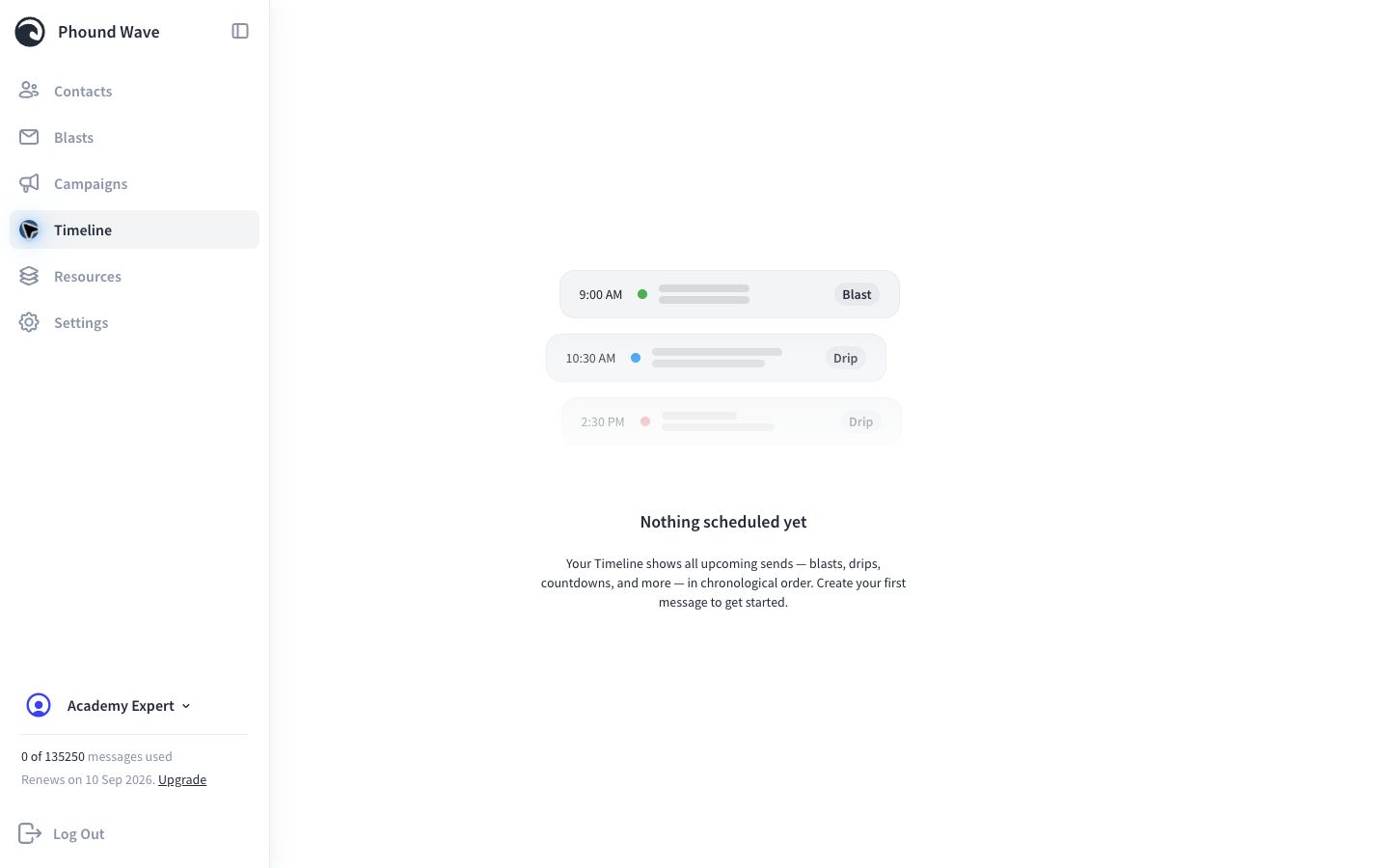
The Timeline is a verification tool. It does not create or reschedule the message itself.
Open the Timeline
- Select Timeline in the Wave sidebar.
- Review the upcoming items in time order.
- Confirm the message type, date, and scheduled time.
- Open or return to the related Blast or Campaign when the timing or audience is not correct.
The Timeline can include Blasts, Drips, Countdowns, and other scheduled Wave messages.
Review an Upcoming Message
For each important send, verify:
- the date and time match the intended schedule
- the message belongs to the correct Blast or Campaign
- the active Wave persona is correct
- the campaign audience contains the intended contacts or collection
- the sender number and broadcast hours have been reviewed
For a Drip campaign, remember that each contact's schedule begins when that contact joins. Two contacts in the same campaign can therefore have different send dates.
If the Timeline Is Empty
An empty Timeline means Wave does not currently show an upcoming send for the active persona. Check:
- whether the correct persona is active
- whether the Blast was created with a future day and time
- whether the Campaign is enabled
- whether the Campaign has at least one message
- whether eligible contacts were added
- whether the message is waiting for another condition or delay
An empty Timeline does not always mean that the campaign is broken. A disabled campaign, a campaign without contacts, or a message whose delay has not produced an upcoming send will not provide the result you expect.
If the Time Is Wrong
- Open the related Blast or Campaign.
- Review the message date, delay, and delivery time.
- Confirm the active persona and its time zone.
- Review broadcast hours.
- Save the correction while the campaign is paused when editing could affect live contacts.
- Return to the Timeline and confirm the updated result.
If the Audience Is Wrong
Open the related campaign's Contacts section and check:
- the selected contacts or collection
- whether Dynamic collection is enabled
- the current collection membership
- any tag or custom-field rules that control the collection
If a keyword controls the audience, trace the contact from the keyword action to its tag and collection.
Final Review
The Timeline does not replace checking the sender, message content, audience, contact eligibility, and broadcast hours. Use it as the final scheduling confirmation after those details are correct.
If the expected item is still missing, continue with Troubleshoot Common Wave Problems.