K

Tags, Custom Fields, and Message Templates

How to use Tags, Custom Fields, and Message Templates in Phound Wave to personalize SMS broadcasts at scale.

Tags, Custom Fields, and Message Templates

The difference between a spammy blast and a message that feels personal is almost always personalization. Phound Wave gives you three tools to keep messages feeling individual even when you send them to thousands: Tags, Custom Fields, and Message Templates. All three live under the Resources section of the Wave dashboard, where you can centralize and reuse them across every campaign.


Resources: Your Central Hub

Wave gives you the following building blocks to personalize messages:

  • Tags — Flexible labels for grouping contacts
  • Custom Fields — Structured data attached to every contact
  • Templates — Reusable message drafts with merge variables
  • Assets — Media files (images, PDFs) you can attach to MMS messages

Everything you build in Resources is available across all your campaigns, so you only define it once.


Tags

Tags are one-word or short-phrase labels you attach to contacts. Unlike Custom Fields, tags are freeform and flexible — you can have as many as you want per contact.

Examples

  • vip, lead, customer, churned
  • persona:sales, persona:support
  • source:referral, source:website
  • region:east, region:west

Creating Tags

  1. Go to Resources > Tags.
  2. Click New Tag and enter a name.
  3. Optionally, add a description so teammates know what the tag is for.

Tags automatically appear as filter options on the Contacts screen and as rule options when building dynamic Collections.

Tip: Keep your tag taxonomy consistent. A tag called lead and another called Lead are two different tags in Wave. Decide on a naming convention (lowercase with colons for categories, for example) and stick with it.


Custom Fields

Custom Fields are structured data attached to every contact. Unlike tags, they have a name and a typed value.

Common Custom Fields

  • customer_since — date
  • birthday — date
  • company_name — text
  • last_order_amount — number
  • preferred_service — text

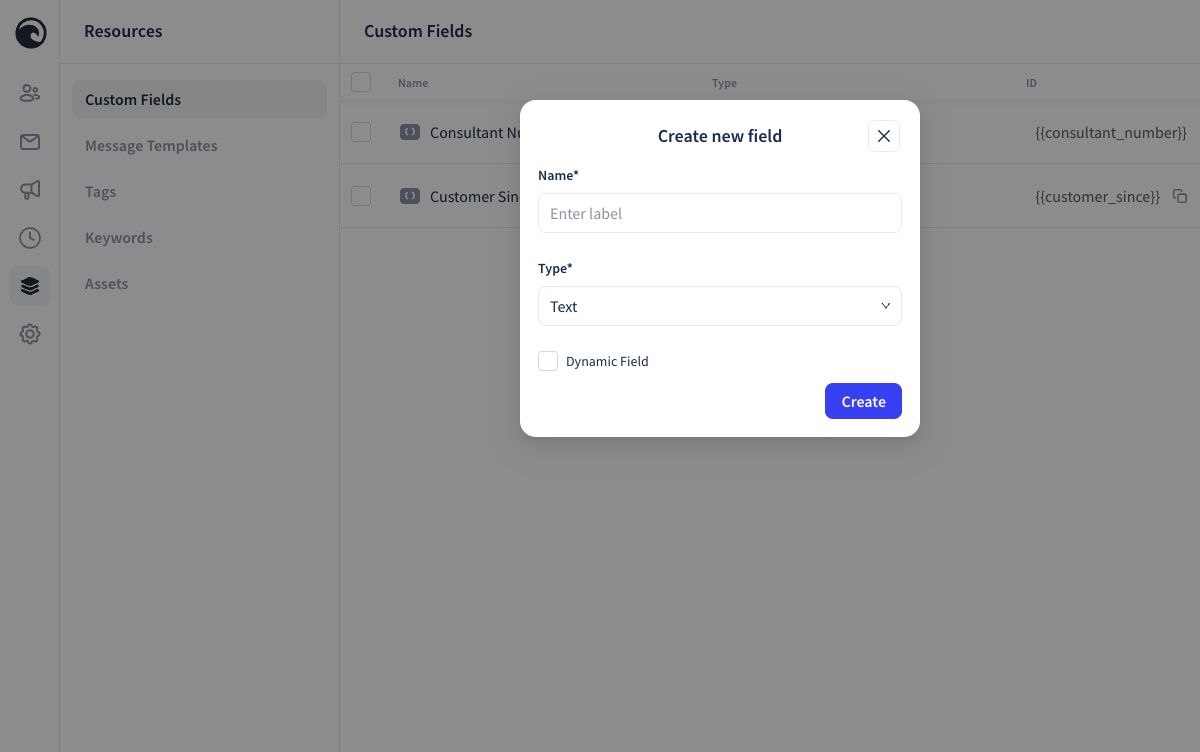
Creating Custom Fields

  1. Go to Resources > Custom Fields.
  2. Click New Field and define:
    • Name (e.g., customer_since)
    • Type (text, number, date, yes/no)
    • Default value (optional)
  3. The field is now available on every contact and can be populated via CSV import, manual edit, or API.

Calendar-Based Logic

Date-type Custom Fields unlock powerful calendar-based campaigns:

  • Anniversaries — "Happy anniversary, {first_name}! You've been a customer since {customer_since}." Wave can automatically trigger this every year.
  • Birthdays — Send a message on the date stored in birthday.
  • Time-based follow-ups — "Your next service is due 6 months after last_service_date." Wave schedules it for you.

Tip: Custom Fields are where the "personal at scale" magic really happens. A birthday message sent automatically on the right day feels completely different from a generic blast, even though both go to thousands of people.


Message Templates

Message Templates are reusable drafts you can pull into any Blast or Campaign. They support merge variables that pull from contact data.

Merge Variables

Drop variables in curly braces to personalize each message:

  • {first_name} — contact's first name
  • {last_name} — last name
  • {company_name} — custom field value
  • {customer_since|format:year} — formatted custom field

Example template:

Hi {first_name}! It's Jane from Acme. Thanks for being a customer since {customer_since|format:year}. We're running a special this week just for you — reply YES to hear more.

When sent, each recipient sees their own name and their own customer-since year. It reads like a one-to-one message because functionally, it is.

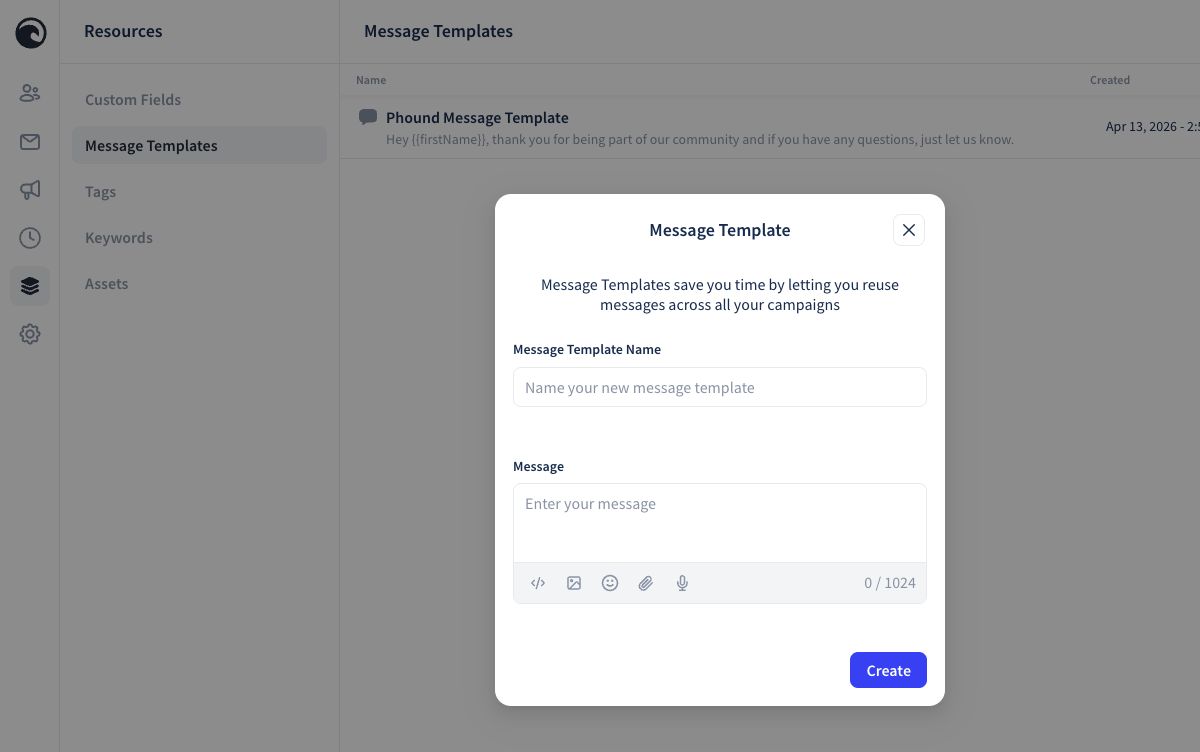
Creating Templates

  1. Go to Resources > Templates.
  2. Click New Template and enter:
    • Name (internal — e.g., "Appointment Reminder")
    • Message body (with merge variables)
    • Optional media attachment from your Assets library
  3. Save. The template now appears as an option when you compose a Blast or build a Campaign.

Template Best Practices

  • Keep messages short. Under 160 characters = 1 SMS segment = lowest cost.
  • Identify yourself. Start with your business name, especially on the first message to a new contact.
  • One clear call to action. "Reply YES to book" is better than "Let us know if you're interested, or you could also visit our website, or…"
  • Include an opt-out path. Wave appends one automatically, but mentioning it in your first few messages builds trust.

Warning: Test every template by previewing it against a real contact before sending. Missing or mistyped merge variables will show up as literal text in the sent message (e.g., "Hi {first_name}!" instead of "Hi Sarah!").


Assets: Media for MMS

The Assets library holds images, PDFs, and other media you can attach to MMS messages. Upload once, use everywhere.

Common uses:

  • Product photos for launches
  • Holiday greeting images
  • PDF coupons or event tickets
  • Logos and branded visuals

Tip: MMS costs more per message than SMS. Use images when they add real value — product shots, event photos, coupons — and stick to SMS for pure text.


Putting It Together

A good personalization workflow looks like this:

  1. Create a tag for your audience (e.g., monthly_newsletter_subscriber).
  2. Define a custom field for a personalization hook (e.g., preferred_service).
  3. Build a template that references both (Hi {first_name}, this month's update for {preferred_service}…).
  4. Use the template in a one-time Blast or an automated Campaign.

Once this is set up, you can launch a new campaign in under 5 minutes.


Still need help?

If you couldn't find what you were looking for, our support team is ready to assist. Contact Phound Support and we'll get back to you as soon as possible.

Was this helpful?

Still need help?

If you couldn't find what you were looking for, our support team is ready to assist. Contact Phound Support and we'll get back to you as soon as possible.