K

Building Automated Campaigns

Build multi-step, automated SMS campaigns in Phound Wave for onboarding, follow-up, review requests, and offers.

Building Automated Campaigns

A Blast is a one-time send. A Campaign is an ongoing, automated sequence — perfect for onboarding new customers, following up after a purchase, requesting reviews, or running multi-step offers. Once you build a Campaign, it runs on its own in the background, messaging contacts based on rules you define.

This guide covers how Campaigns work in Phound Wave and walks through building your first one.


What Is a Campaign?

A Campaign is a sequence of messages that triggers automatically based on:

  • A time-based schedule — e.g., "1 day after signup, then 3 days later, then 1 week later."
  • A date-based rule — e.g., "30 days before customer_since anniversary."
  • A contact event — e.g., "when a contact is added to the new_lead tag."
  • A reply or behavior — e.g., "when a contact replies YES, send the next message."

Each step in a Campaign is called a Node. Nodes can be messages, waits (delays), branches (if/then logic), or actions (add tag, update field).


Common Campaign Patterns

Onboarding Sequence

New customer signs up → welcome message immediately → how-to tip on day 2 → check-in on day 7.

Follow-Up After a Service

Appointment completed → thank-you message same day → satisfaction check on day 3 → review request on day 7.

Review Request

Purchase delivered → 5-day wait → personalized review ask.

Win-Back

Contact tagged churned → offer-focused message on day 0 → stronger offer on day 7 → final outreach on day 14.

Birthday or Anniversary

Date field matches today → personalized greeting with small discount → expires 7 days later.


Building Your First Campaign

Step 1: Create the Campaign

  1. Open Wave and go to Campaigns.
  2. Click New Campaign.
  3. Pick a starting template (Wave offers ones for onboarding, review requests, and follow-ups) or start from scratch.
  4. Name your Campaign — internal only.

Step 2: Define the Trigger

The trigger is what starts the Campaign for any given contact. Options:

  • Contact added to tag — e.g., Campaign starts when a contact is tagged new_customer.
  • Contact added to Collection — e.g., when they match a dynamic Collection's rules.
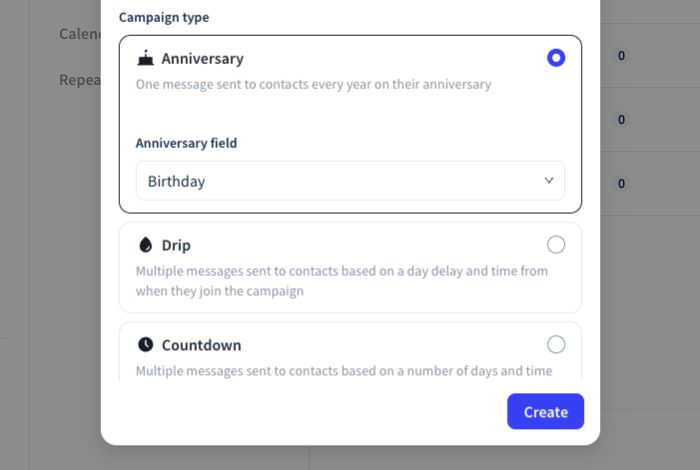
  • Date field match — e.g., when customer_since anniversary matches today.
  • Manual — you pick specific contacts to enroll each time you want to start the sequence.

Step 3: Build the Sequence

A Campaign is a series of messages sent over time, with optional waits between them. Typical Campaign building blocks include:

  • Messages — each step sends a template or custom message.
  • Waits / delays — time between messages (hours, days, weeks).
  • Conditions — optional branches based on contact data or behavior.
  • Actions — updates to the contact (apply a tag, update a custom field).

The exact builder UI and available step types depend on your plan and the current Wave release — see the actual in-app options when you create your Campaign.

Step 4: Personalize Each Message

For every message step, pull in a Template or compose a new message. All the personalization tools — merge variables, custom fields, date formatting — are available here.

Tip: Write each message as if it's the only one the recipient will read. Don't rely on earlier messages for context — contacts might miss them, delete them, or read them out of order.

Step 5: Test and Launch

Before launching:

  1. Dry run — Wave lets you walk through the Campaign with a test contact to see what messages would send, when, and with what merge data.
  2. Preview timing — Check your wait times, especially for long sequences. A "1 day" wait might land at 3am for your recipient — adjust to business hours.
  3. Confirm the trigger — Make sure the right contacts are actually going to enter the Campaign. A mis-scoped trigger that pulls in everyone is the most common Campaign mistake.

Click Launch to activate. From that point on, Wave runs the Campaign automatically — enrolling new contacts as they match the trigger and walking each one through the sequence.


Managing Running Campaigns

From the Campaigns tab you can see, for each active Campaign:

  • Active enrollees — contacts currently in the sequence
  • Completed — contacts who finished the whole flow
  • Step-by-step funnel — how many contacts reached each step
  • Reply rate — responses per step
  • Opt-out rate — be alert if this climbs above a few percent

Click into any Campaign to:

  • Pause — stop new enrollees from entering (existing ones continue)
  • Edit — adjust messages, timings, or nodes (changes apply to new enrollees; existing ones continue on the old flow by default)
  • Archive — retire the Campaign

Warning: Editing a live Campaign can create confusing states for contacts mid-flow. When in doubt, clone the Campaign, edit the clone, launch the new version, and pause the old one.


Timing and Pacing

A few principles for Campaign timing:

  • Respect business hours. Most Campaigns should send between 8am and 9pm in the recipient's local time. Wave supports timezone-aware delivery.
  • Don't over-message. A three-message drip spread over 10 days feels helpful. The same three messages on three consecutive days feels desperate.
  • Build in gaps between Campaigns. If a contact is in multiple Campaigns simultaneously, Wave will still send every scheduled message — you are the one responsible for making sure you're not bombarding them.

Measuring Success

Good Campaign metrics to watch:

  • Delivery rate — Should be > 95%. Lower rates suggest bad data or spam blocking.
  • Reply rate — Varies wildly. For review requests, 10% is great; for onboarding check-ins, 2–5% is normal.
  • Opt-out rate — Under 1% per step is healthy. Over 2% is a signal to review your audience or content.
  • Conversion rate — If your Campaign asks for a specific action (book, buy, review), track how many completed it.

Blasts vs. Campaigns at a Glance

Blast Campaign
Send type One-time Automated sequence
Timing Now or scheduled Triggered per contact
Complexity Single message Multi-step with branching
Best for Announcements, reminders Onboarding, follow-up, drip
Setup time Under 5 minutes 30–60 minutes

Still need help?

If you couldn't find what you were looking for, our support team is ready to assist. Contact Phound Support and we'll get back to you as soon as possible.

Was this helpful?

Still need help?

If you couldn't find what you were looking for, our support team is ready to assist. Contact Phound Support and we'll get back to you as soon as possible.