The Mary Kay 2+2+2 campaign helps you follow up with customers about 2 days, 2 weeks, and 2 months after a purchase. Import the campaign, review its three messages, and add eligible customers when you are ready.
Before You Begin
Make sure you have:
- Access to your Phound Wave account.
- Customers who agreed to receive your messages.
- A TCR-approved Wave number before you test or send.
You can import and edit the campaign while TCR registration is pending. The campaign imports Off and does not include contacts or customer data.
Step 1: Import the 2+2+2 Campaign
- In Phound Wave, open Settings.
- Select Configuration bundles.
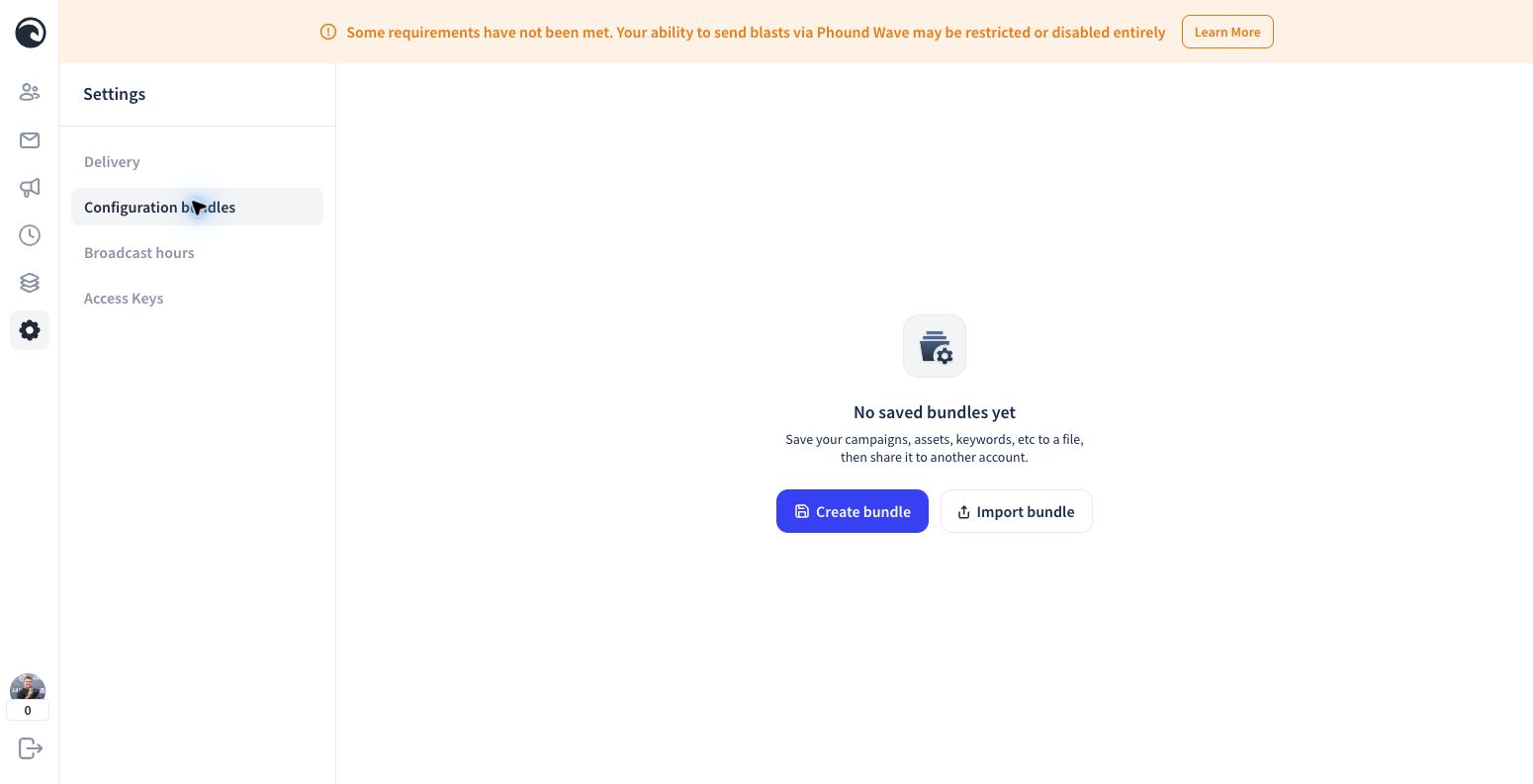
- Select Import bundle.
- Copy and paste this bundle key:
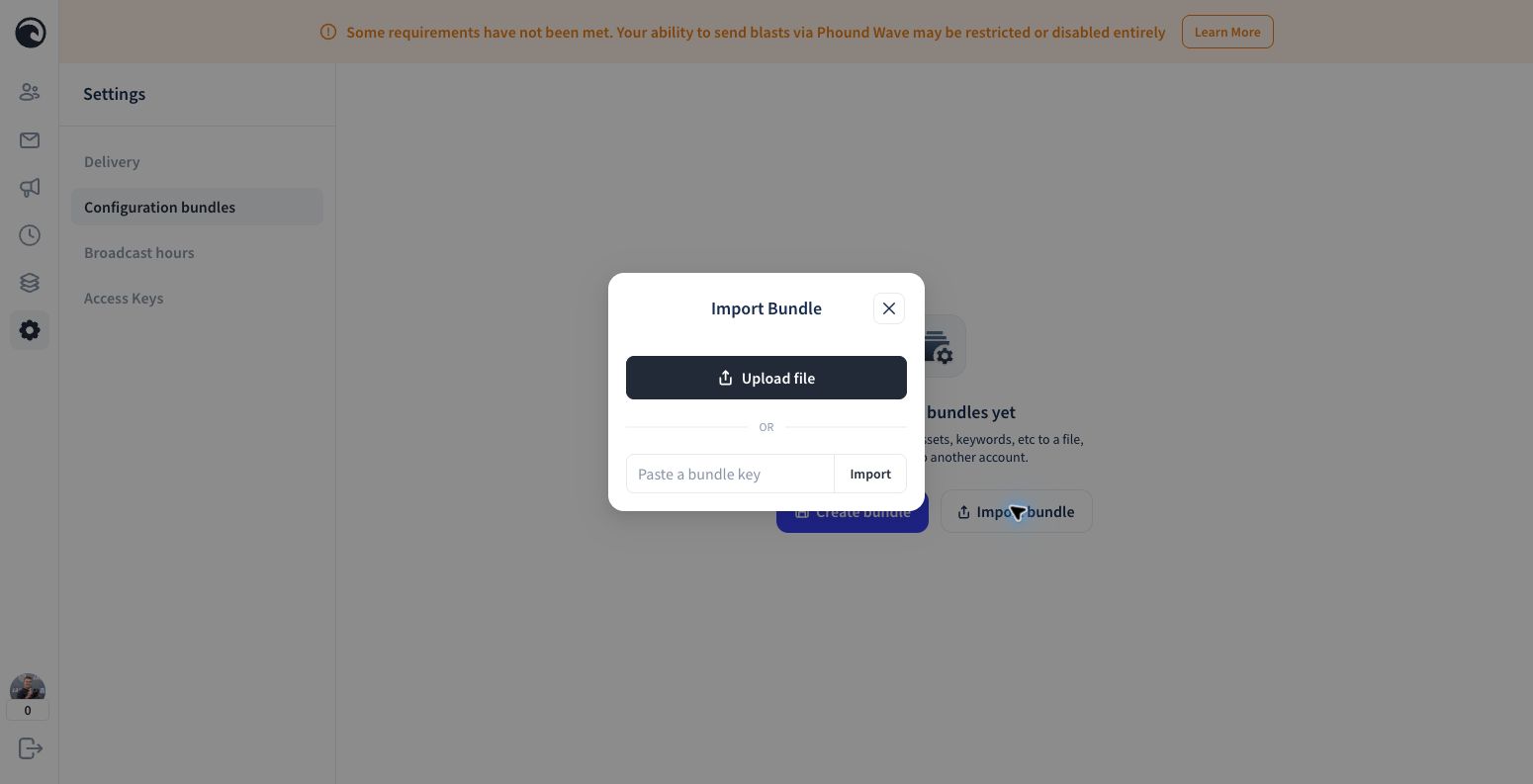
- Select Import.
- Select Campaigns and Collections.
- Select Preview & Apply (2).
- Confirm that both categories were applied.
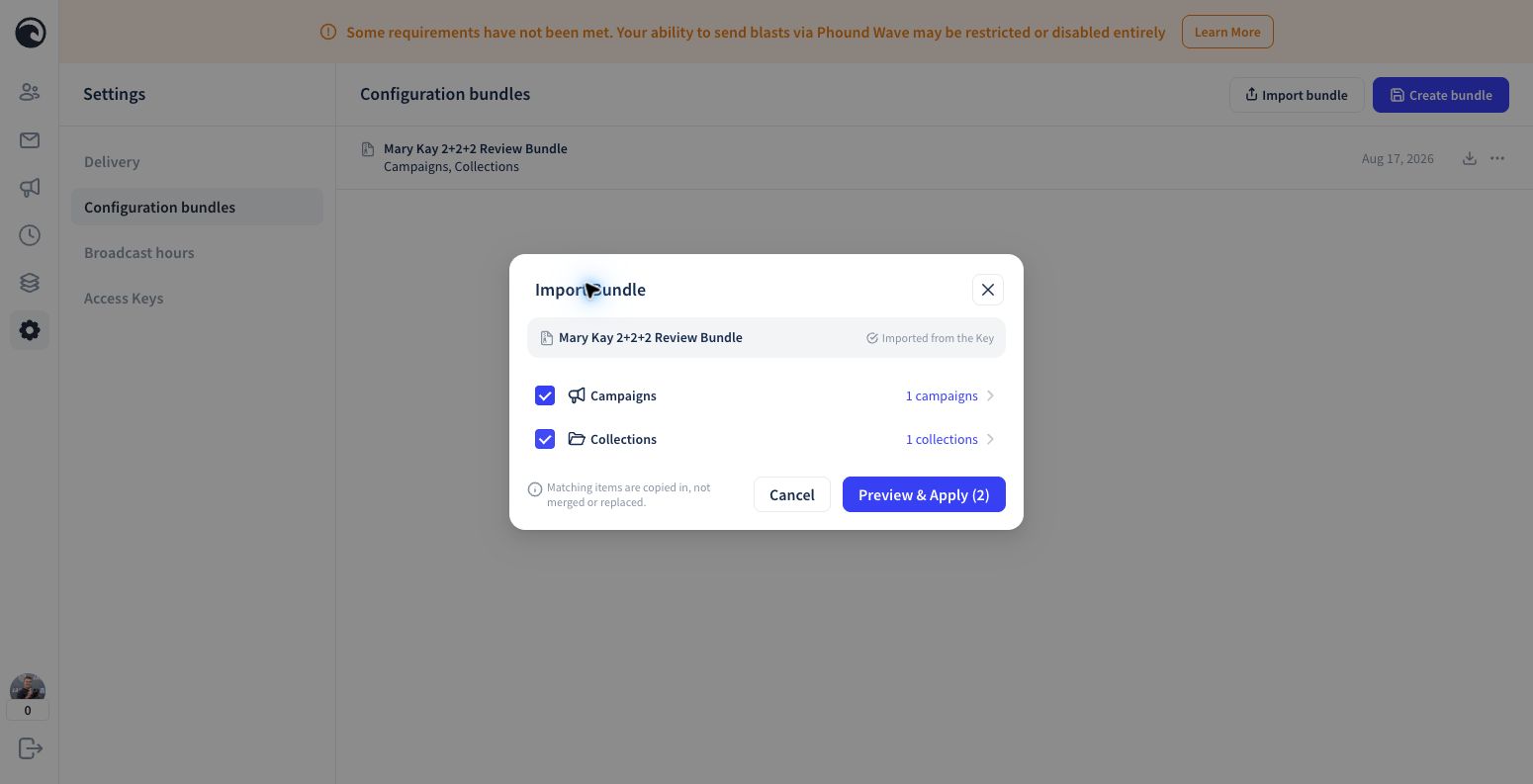
Wave creates bundle keys automatically, so the key cannot be renamed. This bundle includes the disabled campaign, its three messages, and the empty 2+2+2 collection. It does not include contacts, customer data, or a sending number.
For more information, see Importing Configuration Bundles.
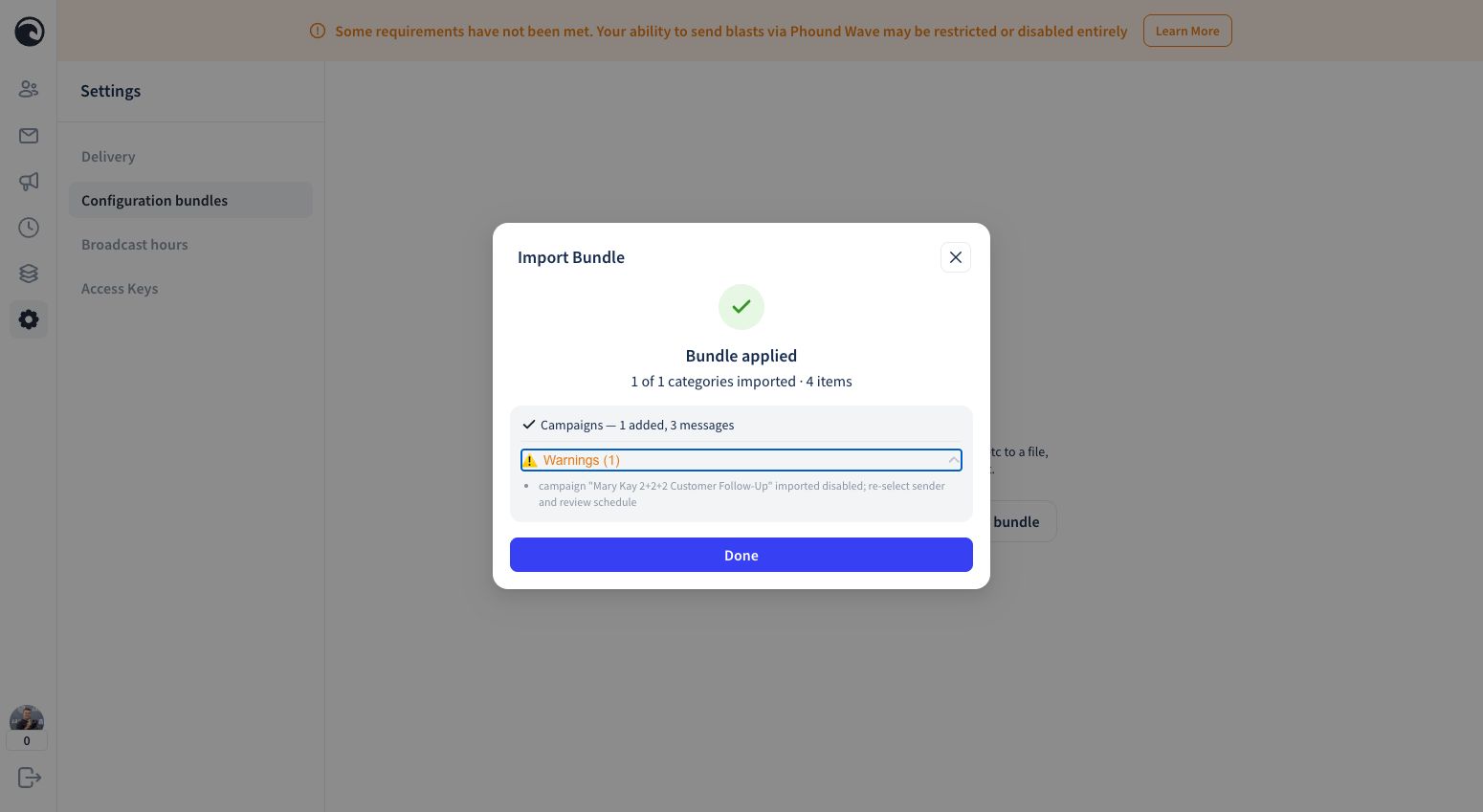
The Import Warning Is Expected
Wave will remind you that the imported campaign is disabled and needs a sending number. This prevents it from sending before you finish setup.
Step 2: Review and Edit the Campaign
Open Campaigns, then select Mary Kay 2+2+2 Customer Follow-Up.
Confirm that:
- The campaign is Off.
- There are 0 contacts.
- There are 3 messages.
- The 2+2+2 collection appears under Contacts.
- No sending number is assigned.
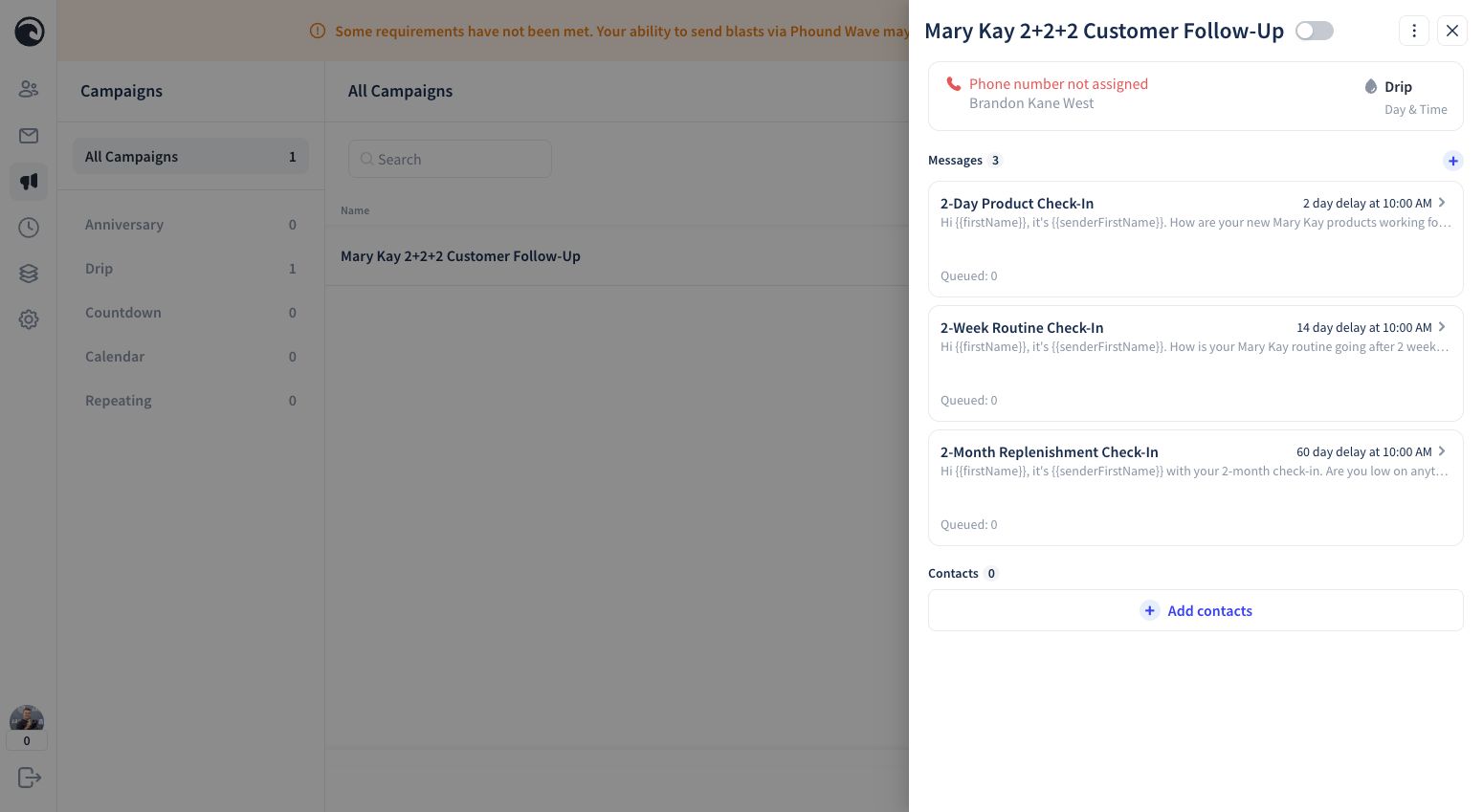
All three messages can be edited at any time. Open a message, make your changes, and select Save.
Before testing, edit the campaign and select your own TCR-approved Wave number. See Carrier Registration and TCR if your number is not ready.
Step 3: Add Customers to the 2+2+2 Collection
For now, manually add each eligible customer to the 2+2+2 collection after their purchase. Adding the customer to the collection starts the campaign schedule.
Only add customers who agreed to receive your messages. Do not add your entire contact list.
In the future, Mary Kay InTouch is expected to automate this step. Until then, continue adding eligible customers to the collection manually.
See Contacts and Collections for detailed instructions.
Step 4: Test and Enable the Campaign
Keep the campaign Off until you have selected an approved sending number and completed a test with a phone number you own or are authorized to use.
Before testing, review your account's sending window in Broadcast Hours and Scheduling.
Follow Test, Enable, and Pause a Campaign to test the messages and turn the campaign on when it is ready.