Wave provides separate InTouch imports for Customers and Consultants. The review window lets you inspect the available records, map fields, add tags, remove individual records, and optionally turn on a 24-hour sync.
The import belongs to the active Wave persona. It does not automatically place every imported contact into a Mary Kay campaign.
Before You Begin
Confirm:
- you opened Wave from the correct Phound persona
- the InTouch connection belongs to the intended consultant or organization
- you know whether you need Customers or Consultants
- the contacts are eligible for the messages you plan to send
- you know which Wave collection should receive the imported contacts afterward
Start the Import
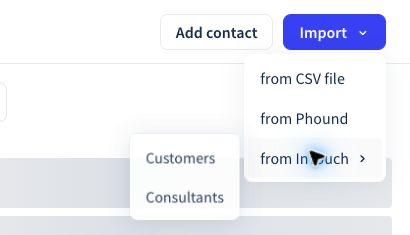
- Open Contacts in Wave.
- Select Import.
- Select InTouch.
- Choose Customers or Consultants.
- Wait for Wave to review the available records.
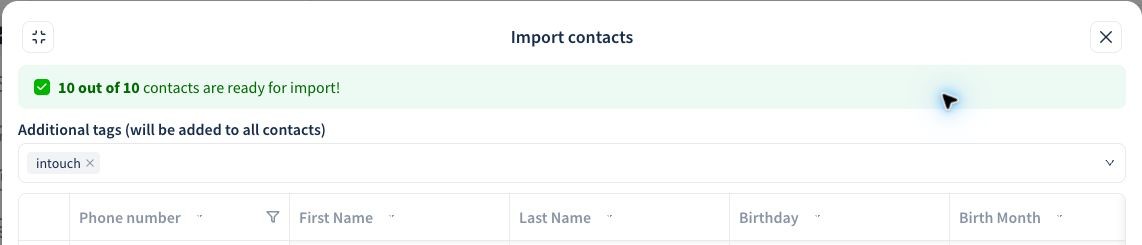
The import window shows the ready count at the top. Review the count before mapping fields or importing.
Choose Customers or Consultants
Choose Customers for customer follow-up workflows, including the Mary Kay 2+2+2 campaign. Choose Consultants when the Wave workflow is designed for consultant communication or organization.
If you select the wrong source, cancel the review and begin again. Do not import both groups simply because they are available.
Customer Field Mapping
The customer import can provide fields such as:
- Phone number
- First Name
- Last Name
- Birthday
- Birth Month
- Anniversary Day
- Anniversary Month
- Tags
Confirm every mapping instead of assuming that the suggested destination is correct. A blank birthday or anniversary value is different from an incorrectly mapped value.
Consultant Field Mapping
The consultant import can also include Mary Kay-specific columns such as:
- consultant ID
- consultant status
- consultant level
These columns may default to Do not import. Map them only when the active Wave persona has an appropriate custom field and the workflow needs that information.
Use Do not import when:
- the destination field does not exist
- the information is not needed for the Wave workflow
- the source format does not match the Wave field
- importing the value could overwrite better data
Review Records and Tags
The review table lets you remove individual records before importing. Remove a record when it should not be copied into the active persona or when its information needs to be corrected first.
Wave can also apply an additional tag to every imported record. The default intouch tag makes it easier to filter contacts by source and diagnose later import questions. Keep useful InTouch tags that describe the person's customer or consultant relationship.
Before importing, confirm:
- the ready count is reasonable
- the phone and name mappings are correct
- optional fields are mapped intentionally
- the additional
intouchtag is present if you want source tracking - any record that should not be included has been removed
Automatic Sync
The InTouch import includes Sync automatically every 24 hours. Turn it on when the active persona should continue refreshing the connected InTouch contact data each day.

Before enabling the sync:
- Confirm the selected source is correct.
- Review which columns are mapped.
- Confirm the tags that will be applied.
- Make sure custom fields will not receive information in an incompatible format.
The control confirms that Wave will run the sync every 24 hours. Do not assume that a sync changes campaign membership. Verify collections and campaign audiences separately.
Complete and Verify the Import
- Select Import after the review is complete.
- Return to Contacts.
- Filter by the
intouchtag. - Compare the result count with the ready count from the review.
- Open a small sample of contacts.
- Check names, phone numbers, birthday or anniversary fields, consultant fields, and tags.
- Add the verified contacts to the collection required by the approved workflow.
For the current Mary Kay 2+2+2 workflow, the contacts must be in the correct 2+2+2 collection and that collection must be attached to the campaign.
Common Problems
- The wrong records appear: Cancel and confirm Customers versus Consultants and the active persona.
- A field is missing: Confirm that the active persona has the required custom field, then reopen the import review.
- A field contains the wrong information: Recheck the mapping before importing or syncing again.
- Imported contacts are not in the campaign: Add them to the correct collection and confirm that the collection is attached under the campaign's Contacts section.
- The
intouchfilter returns nothing: Confirm that the additional tag was included and that the import completed. - The imported count is smaller than expected: Review invalid or removed records in the import window.
Continue with Mary Kay 2+2+2 Follow-Up or Contacts, Collections, and Dynamic Audiences.