Keywords trigger actions when an incoming message contains a matching word or phrase. Wave can add a tag, remove a tag, and send an instant reply.
Plan the Automation
Decide what should happen before creating the keyword:
| Decision | Example |
|---|---|
| Main keyword | INFO |
| Useful aliases | DETAILS, LEARN MORE |
| Tag to add | requested-info |
| Tag to remove | needs-follow-up |
| Reply | A short confirmation explaining what happens next |
Use a distinctive keyword that is easy to type and unlikely to appear accidentally in an unrelated reply.
Create a Keyword
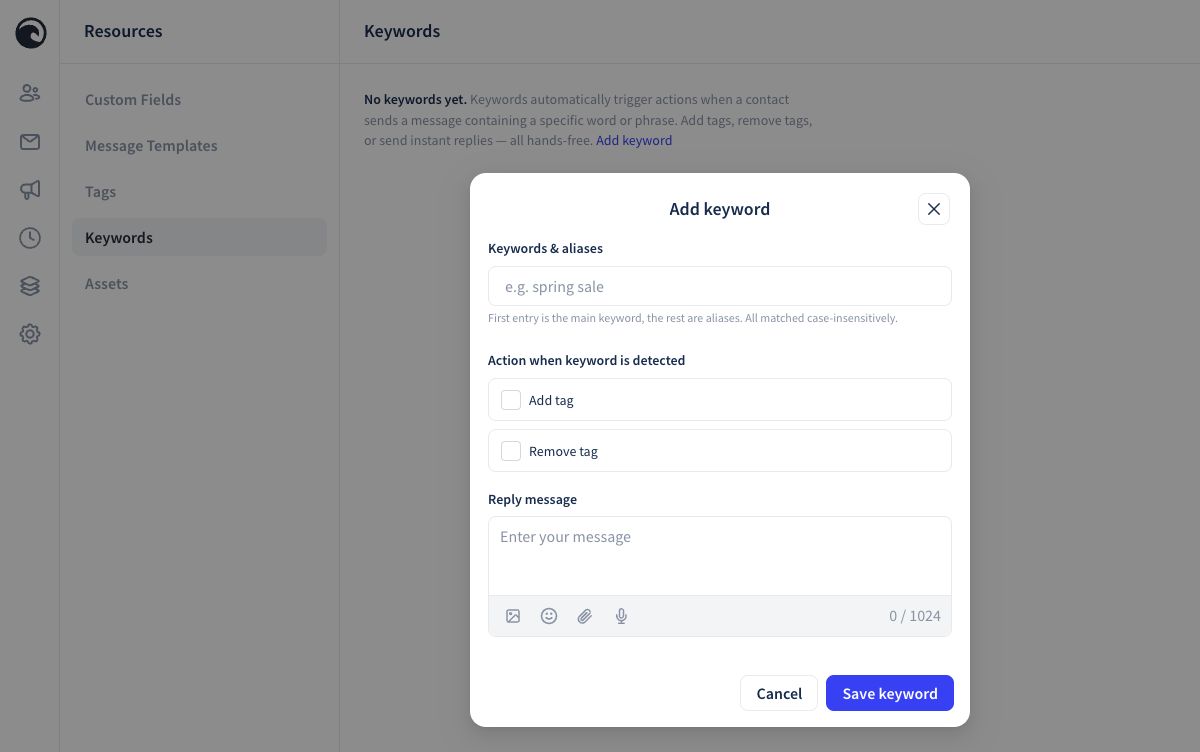
- Open Resources.
- Select Keywords.
- Select Add keyword.
- Add the main keyword first.
- Add any aliases that should trigger the same automation.
- Select the actions to run.
- Write the reply message if the automation should respond.
- Select Save keyword.
Wave matches the main keyword and its aliases without considering uppercase or lowercase letters.
The main keyword and every alias run the same saved actions. Create a separate keyword when a different word should produce a different reply or tag result.
Available Actions
| Action | Result |
|---|---|
| Add tag | Applies the selected tag to the contact. |
| Remove tag | Removes the selected tag from the contact. |
| Reply message | Sends the saved response after the keyword is detected. |
One keyword can contain more than one action. Review the final combination carefully. For example, a keyword can remove an old status tag, add a new interest tag, and send a reply.
Connect a Keyword to a Collection
A useful workflow is:
- The contact sends the approved keyword.
- Wave applies a tag.
- A collection includes contacts with that tag.
- A Blast or Campaign uses that collection.
This works best when the collection rule is based on the tag the keyword applies. Confirm that the collection is dynamic when future tag changes should update membership.
Test the Entire Path
Use a phone number you own or are authorized to use.
- Send the main keyword to the Wave number.
- Confirm that the automatic reply arrives.
- Open the contact in Wave and confirm the expected tag changes.
- Open the collection and confirm the contact is included or removed as intended.
- Review the related campaign or Blast audience.
- Check the Timeline if the tag and collection should schedule a future campaign message.
Repeat the test with each alias. Also send an unrelated phrase to confirm that it does not trigger the automation.
Common Problems
- No reply arrives: Confirm that the keyword is saved, the sender can receive messages, and the test text matches the keyword or an alias.
- The tag changes but the collection does not: Review the collection's filter rule and Dynamic collection behavior.
- The wrong reply is sent: Search the Keywords screen for overlapping keywords or aliases.
- A contact enters an unexpected campaign: Trace the tag to its collections, then review which campaigns use those collections.
Important: A keyword can support an approved opt-in workflow, but creating a keyword does not by itself establish consent. Use the consent language and process approved for your account.
Continue with Contacts, Collections, and Dynamic Audiences or Build a Drip Campaign.