The Assets tab in Wave Resources stores reusable files and voice recordings for messages.
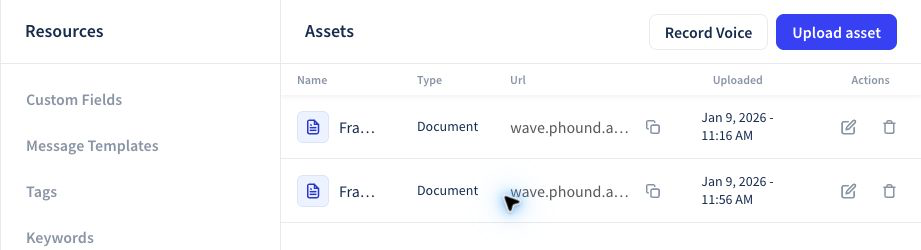
Each asset belongs to the active Wave persona. The Assets table shows its name, type, Wave URL, upload date, and available actions.
Before Adding an Asset
Confirm that the file or recording:
- is approved for the intended audience
- does not contain customer records, credentials, or private account information
- has a clear name that another user will recognize
- is the final version you intend to share
- can be opened on the devices your audience uses
Open Assets
- Open Resources.
- Select Assets.
- Choose Upload Asset for an existing file or Record Voice for a new recording.
Uploading or recording an asset adds it to the active persona's Wave library. Wave displays its name, type, URL, upload date, and available actions.
Upload a File
- Select Upload asset.
- Choose the approved file from your computer.
- Complete the upload.
- Find the new item in the Assets table.
- Confirm the name, type, and upload date.
- Open the resulting Wave URL before placing it in a live message.
Use the row's copy control when you need the asset URL. Copying the link does not send the asset to anyone by itself.
Record a Voice Asset
- Select Record Voice.
- Select the record control when you are ready to speak.
- Review the recording before saving it.
- Give the saved recording a recognizable name when that option is available.
- Open the saved asset and confirm the audio is clear.
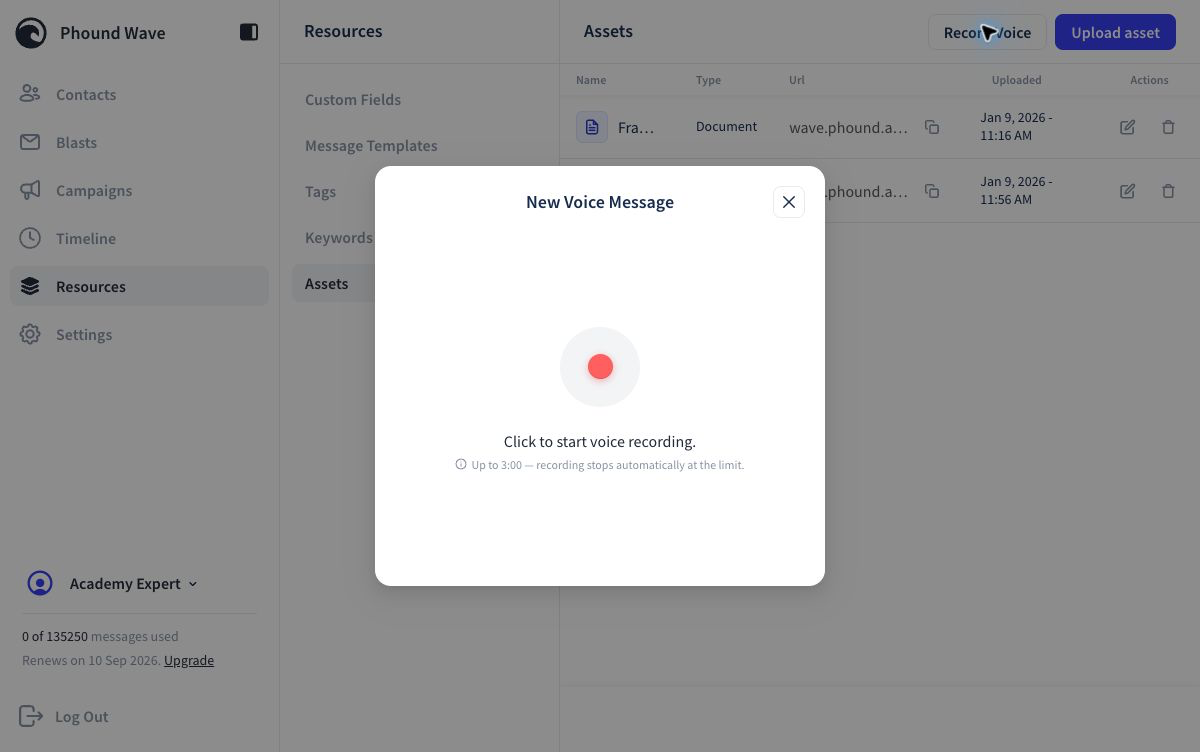
The current recorder allows up to three minutes and stops automatically at the limit. Record in a quiet environment and avoid speaking customer-specific information into a reusable asset.
Use an Asset in a Message
Open the message composer in a Blast, Campaign, or Message Template. Use the asset control to insert the saved item. Wave can provide a short Wave asset URL for a file that is shared as a link.
Before sending:
- open the asset from the final message
- confirm the correct file is available
- check that the asset is appropriate for every recipient
- test the message on the device types your audience commonly uses
Replace an Outdated Asset
Upload the approved replacement as a new asset, test its URL, and update every message or template that used the old item. Do not assume that changing an asset name automatically updates previously inserted links.
Remove or retire the old asset only after you have confirmed that no active message still depends on it.
Common Problems
- The asset is not listed: Confirm the active persona and that the upload completed.
- The link does not open: Copy the full Wave URL again and test it before sending.
- The wrong file opens: Replace the link in the message and verify the final preview.
- The recording is unclear: Create a new recording instead of using an unclear reusable asset.
- Recipients cannot use the file: Test the asset format and size on representative devices before sending.
Continue with Tags, Custom Fields, and Message Templates.