A configuration bundle lets one Wave account share selected resources with another account. The receiving account previews the available categories before applying them.
Import the Bundle
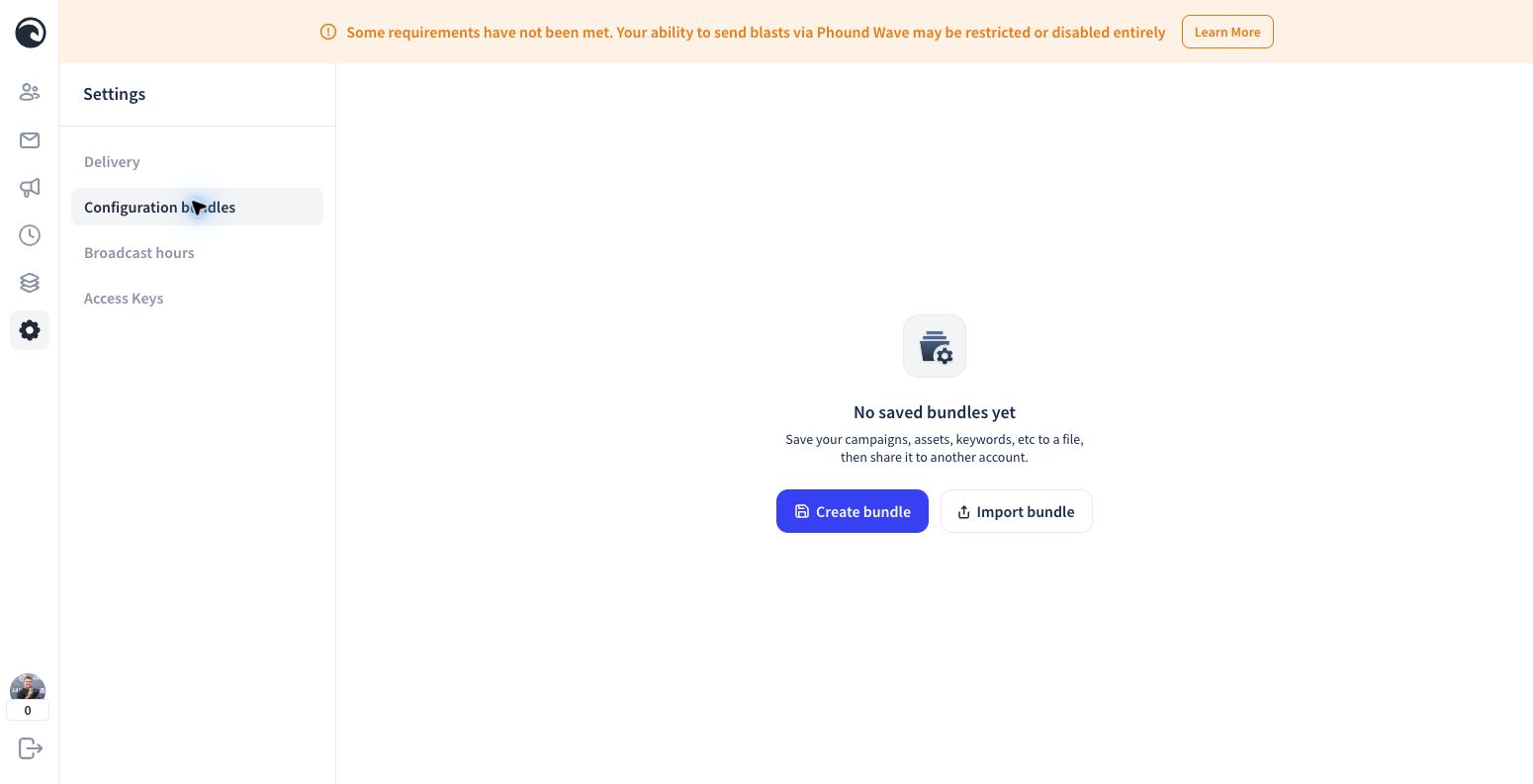
- Open Settings.
- Select Configuration bundles.
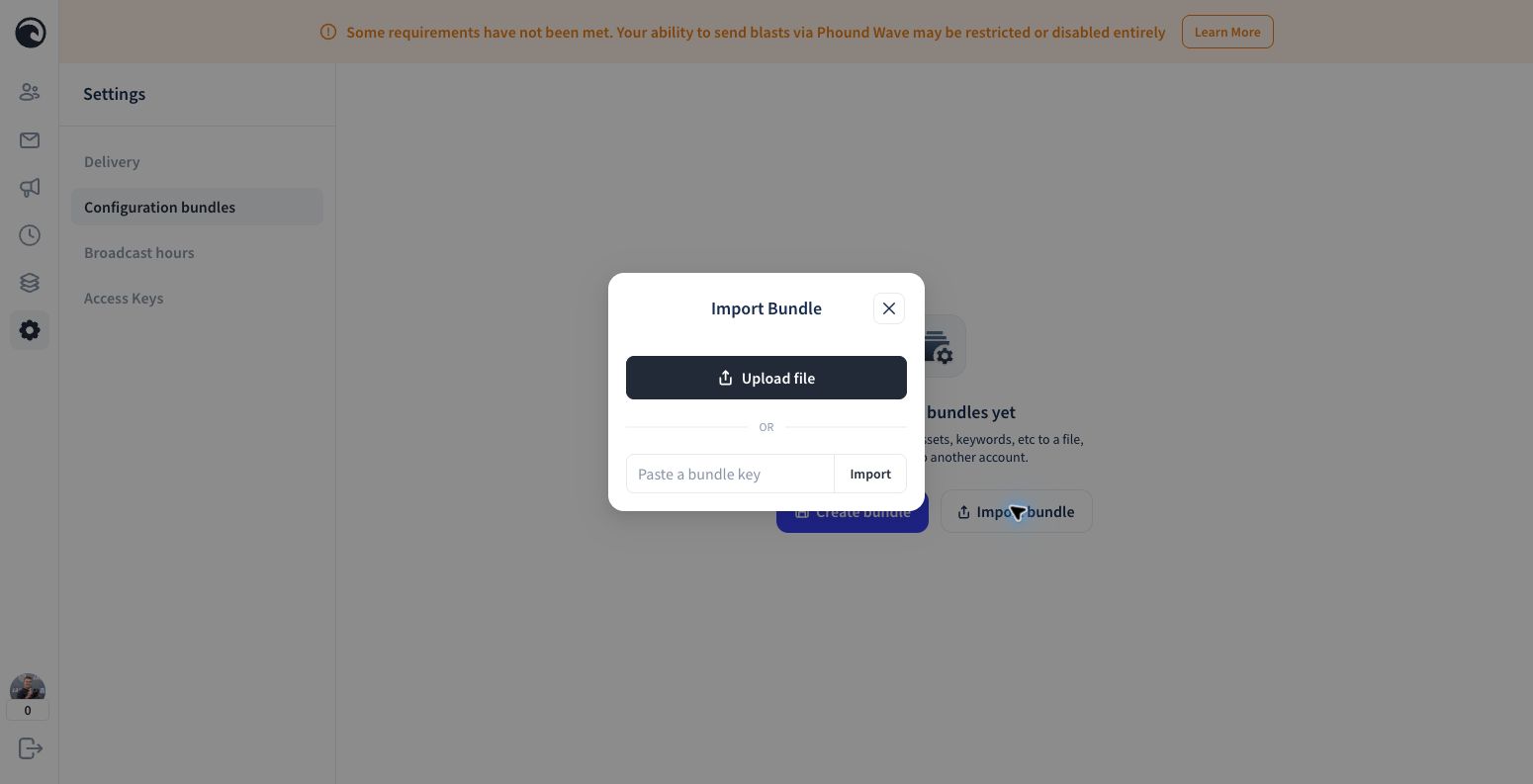
- Select Import bundle.
- Paste the complete key supplied by the bundle creator.
- Select Import.
- Review the bundle name and available categories.
- Select only the categories you intend to add.
- Select Preview & Apply.
- Review the result before opening the imported items.
Select Related Categories
If a campaign depends on a collection, select both Campaigns and Collections. A bundle can also offer Blasts, Contacts, Assets, and Message Templates.
Review every available category. Do not import Contacts unless transferring that customer data is intentional and authorized.
Review Imported Campaigns
An imported campaign should not begin sending before you finish setup. Open each imported campaign and confirm:
- the campaign is disabled
- the expected messages and timing are present
- the intended collection appears under Contacts
- no unintended contacts were imported
- the correct sending number is selected for the receiving account
- the messages can be edited
Then review Broadcast Hours and Scheduling and complete a live test before enabling the campaign.
If the Key Does Not Work
- Copy the full key without extra spaces.
- Confirm that the creator shared the current key.
- Ask whether the source bundle is still available.
- Do not paste an API access key. API keys and configuration bundle keys are different.
To create a reusable bundle, see Create and Share Configuration Bundles.