Broadcast hours control when Wave may deliver outbound Campaign and Blast messages. Messages scheduled outside the allowed window are held until working hours resume.
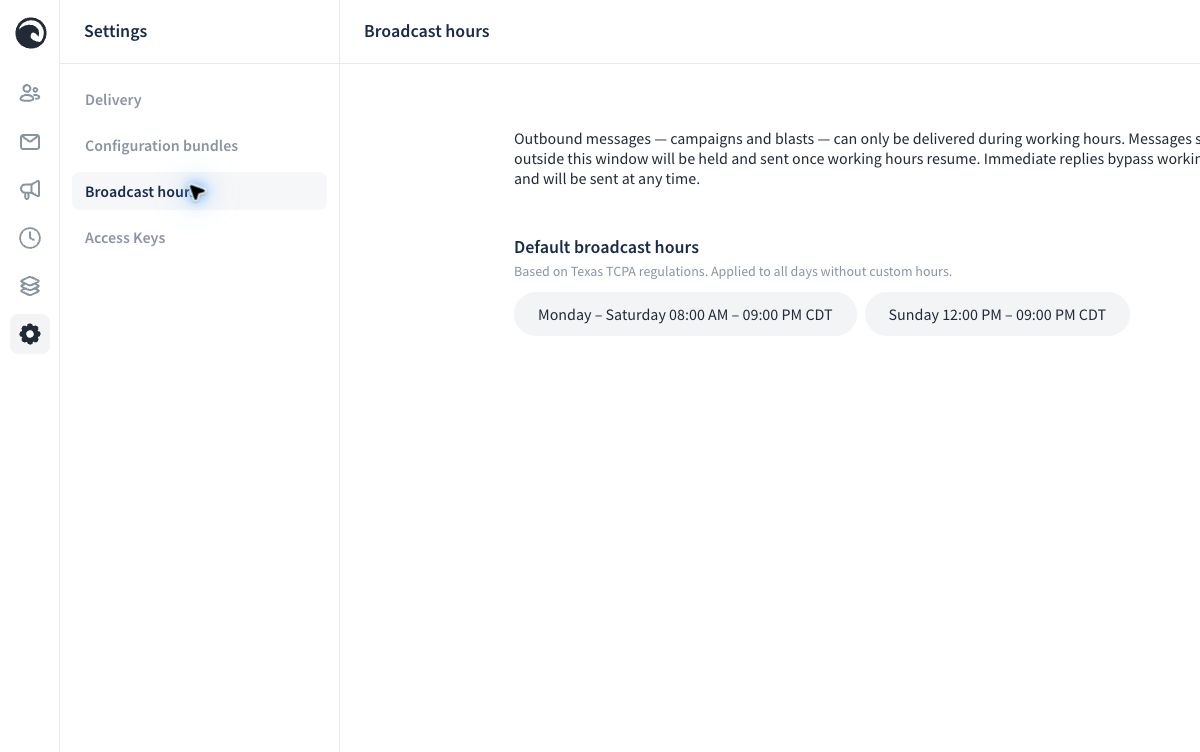
Review Broadcast Hours
- Open Settings.
- Select Broadcast hours.
- Review the default schedule and its time zone.
- Select Add custom schedule when the active persona needs different working hours.
- Confirm the schedule before testing or enabling messages.
Wave identifies the default shown in the account as based on Texas TCPA regulations. Treat it as the account default, not a substitute for reviewing the requirements that apply to your organization and audience.
What Happens Outside the Window
- Outbound Campaign and Blast messages are held until working hours resume.
- A message's own date and time does not override broadcast hours.
- Immediate replies bypass broadcast hours and can be sent at any time.
Before Scheduling
Confirm:
- the correct persona is active
- the displayed time zone is expected
- weekday and weekend hours are appropriate
- each Blast or Campaign message uses the intended time
- a configuration bundle did not introduce timing that needs review
For the full campaign checklist, see Test, Enable, and Pause a Campaign.