Wave can import contacts from a CSV file, from Phound, or from Mary Kay InTouch. This guide covers the common import workflow and the details for CSV and Phound imports. Mary Kay users should also review Import and Sync Mary Kay InTouch Contacts.
An import adds records to the active Wave persona. It does not automatically add every imported contact to a Blast or Campaign.
Before You Begin
Make sure:
- the correct Wave persona is active
- every contact is eligible to receive the messages you plan to send
- the source has current phone numbers for text messaging and saved email addresses for intended email recipients
- you know which tags or custom fields you want to preserve
- you can identify the imported contacts afterward
Choose an Import Source
- Open Contacts.
- Select Import.
- Choose one of the available sources:
| Source | Use it when |
|---|---|
| CSV file | You have an authorized spreadsheet and need to control which columns become Wave fields. |
| Phound | The contacts already exist in the connected Phound persona. |
| InTouch | You need to import or sync Mary Kay Customers or Consultants. |
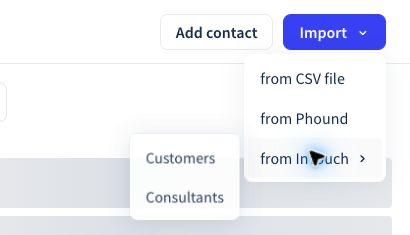
For InTouch-specific fields and automatic syncing, see Import and Sync Mary Kay InTouch Contacts.
Review the Import
Wave reviews the source before adding anything. The review window can show how many records are ready and whether any records contain invalid fields.
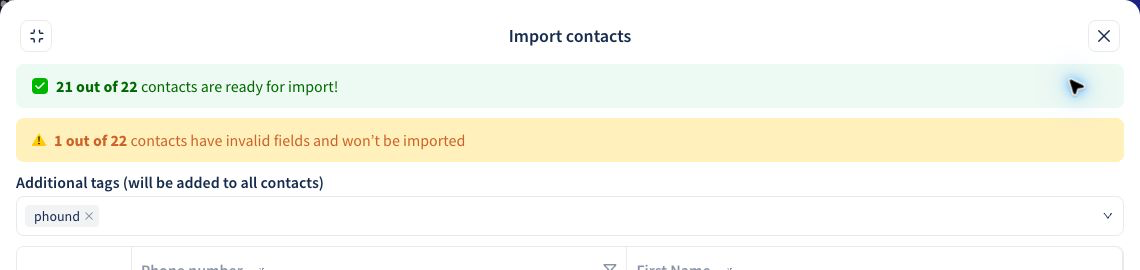
Before selecting Import:
- Confirm the count of contacts ready for import.
- Review any invalid or skipped records. A skipped record is not added to Wave.
- Confirm that the phone-number and name columns are mapped correctly. If an Email mapping is offered, map the source email column when you plan to send email.
- Review each optional column. Choose Do not import when Wave should ignore a column.
- Add a source tag, such as
phound, when it will help with filtering and troubleshooting. - Remove any record that should not be included.
Do not use the ready count alone as approval to send. Import eligibility and messaging consent are separate checks.
Import from Phound
Use from Phound when the contacts already exist in the Phound persona connected to Wave.
- Open Contacts and select Import.
- Select from Phound.
- Review the ready and invalid counts.
- Confirm the available field mappings.
- Keep or change the additional
phoundsource tag. - Remove any record that should not be copied.
- Select Import only after the review is complete.
If the list does not contain the contacts you expect, cancel the import and confirm the active persona before trying again.
Import from a CSV File
Prepare a clean CSV with one contact per row. The text-messaging example below includes a phone-number column. Use consistent headings and include an email column for intended email recipients. Follow the import window's validation; do not assume an email-only record without a phone number is accepted.
A practical file might include:
| Phone number | First name | Last name | Optional fields |
|---|---|---|---|
| Destination for SMS | Recommended | Recommended | Email, tags, birthday, source, or other fields used by your workflow |
During the import:
- Match the CSV phone-number column to the Wave phone-number field.
- Match names and any other columns you need.
- Set unused columns to Do not import.
- Review invalid records before continuing.
- Apply a source tag that identifies the file or process when useful.
Do not import purchased lists or contacts who are not eligible to receive your messages.
Verify the Result
- Search for several imported contacts.
- Open them and verify their phone number, Email, name, tags, and custom fields against the source.
- Use Filter to confirm the source tag works as expected.
- Compare the imported count with the expected source count.
- Add the appropriate tags or place the contacts in a collection.
- Review the final audience count before using it in a Blast or Campaign.
If the Import Does Not Look Correct
- Contacts are missing: Check the invalid count and confirm the active persona.
- Names or fields are wrong: Cancel before importing and correct the column mapping.
- The same person appears more than once: Review the source data and existing Wave contacts before messaging.
- You cannot find the new contacts: Filter by the additional source tag used during import.
- The import source is not available: Confirm that the required account connection and persona are active.
Continue with Contacts, Collections, and Dynamic Audiences.
Before an email Blast, verify the resulting Email values in the actual selected contacts. Import success is not proof of email delivery or email eligibility.