Numbers and Subscriptions are on the Account page, not in Settings. This guide applies to Phound Desktop and was verified on version 6.0.5635.
Open Account
- Open Phound Desktop.
- Select the profile icon near the bottom of the left sidebar.
- Select Account.
The Account page contains both Numbers and Subscriptions. The numbered highlights below show their location in the full Phound interface.
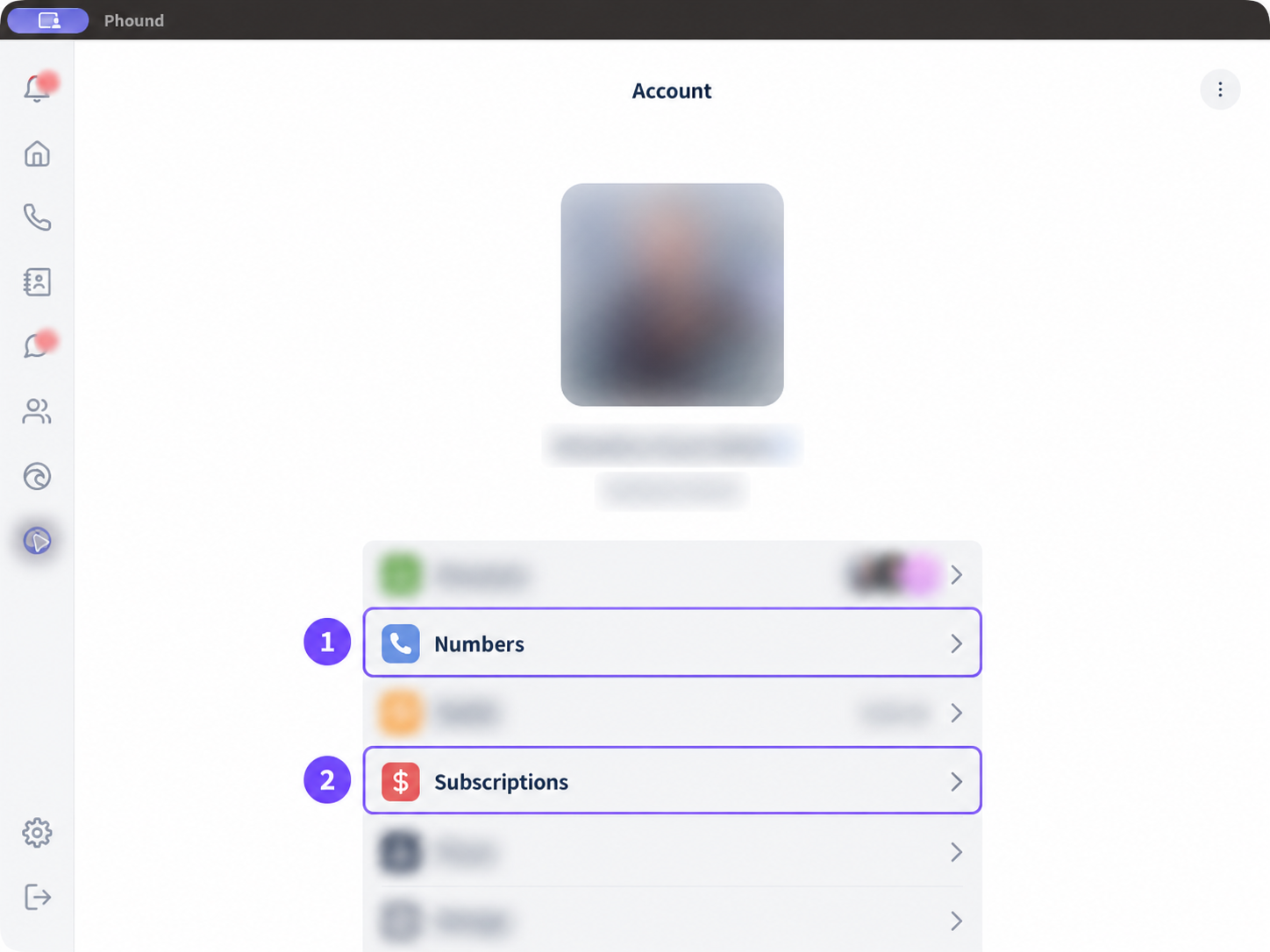
Manage your phone numbers
- From Account, select Numbers.
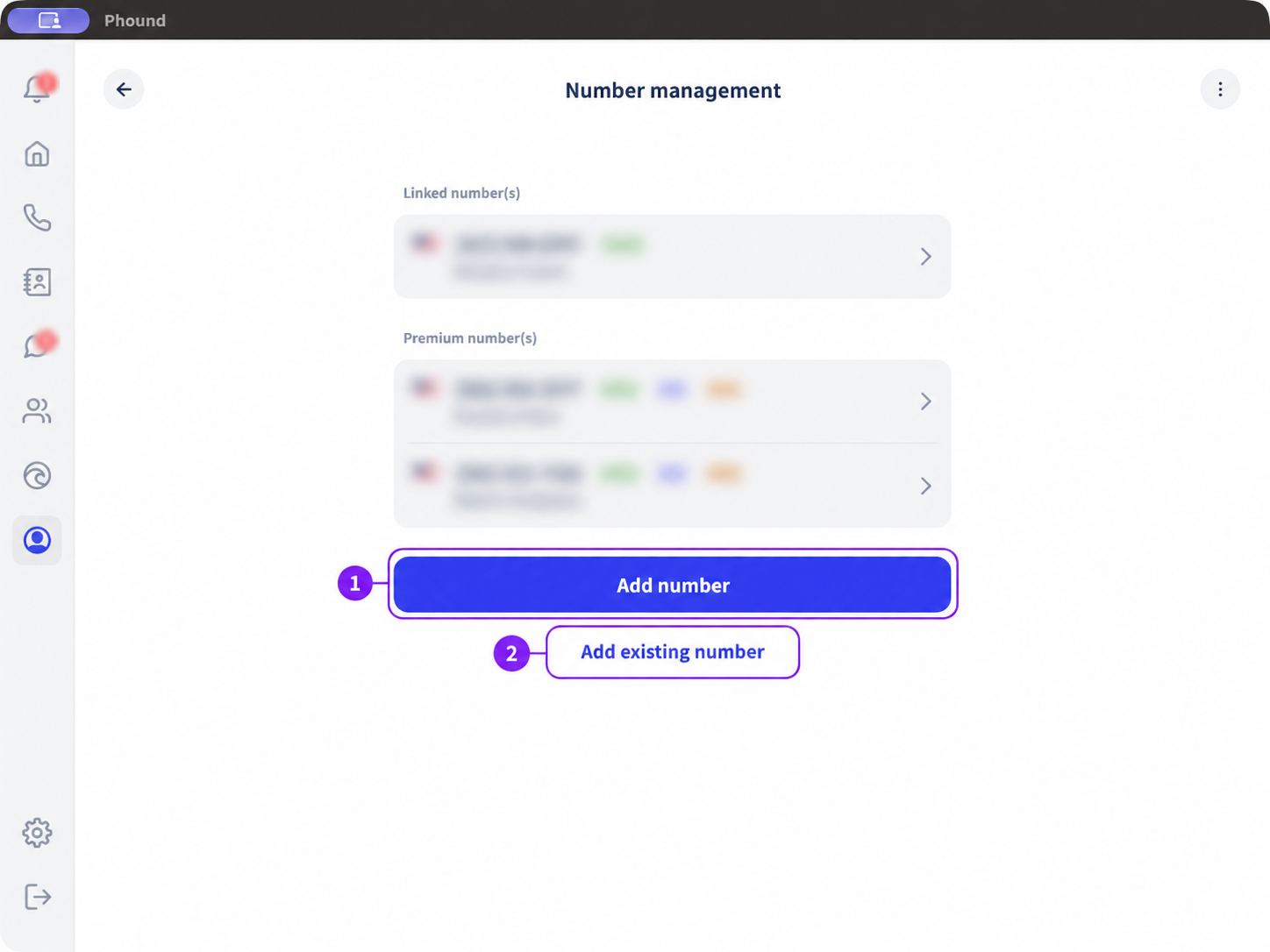
- Confirm that the page heading says Number management.
- Select Add number to get a new number.
- Select Add existing number to link or transfer an eligible number.
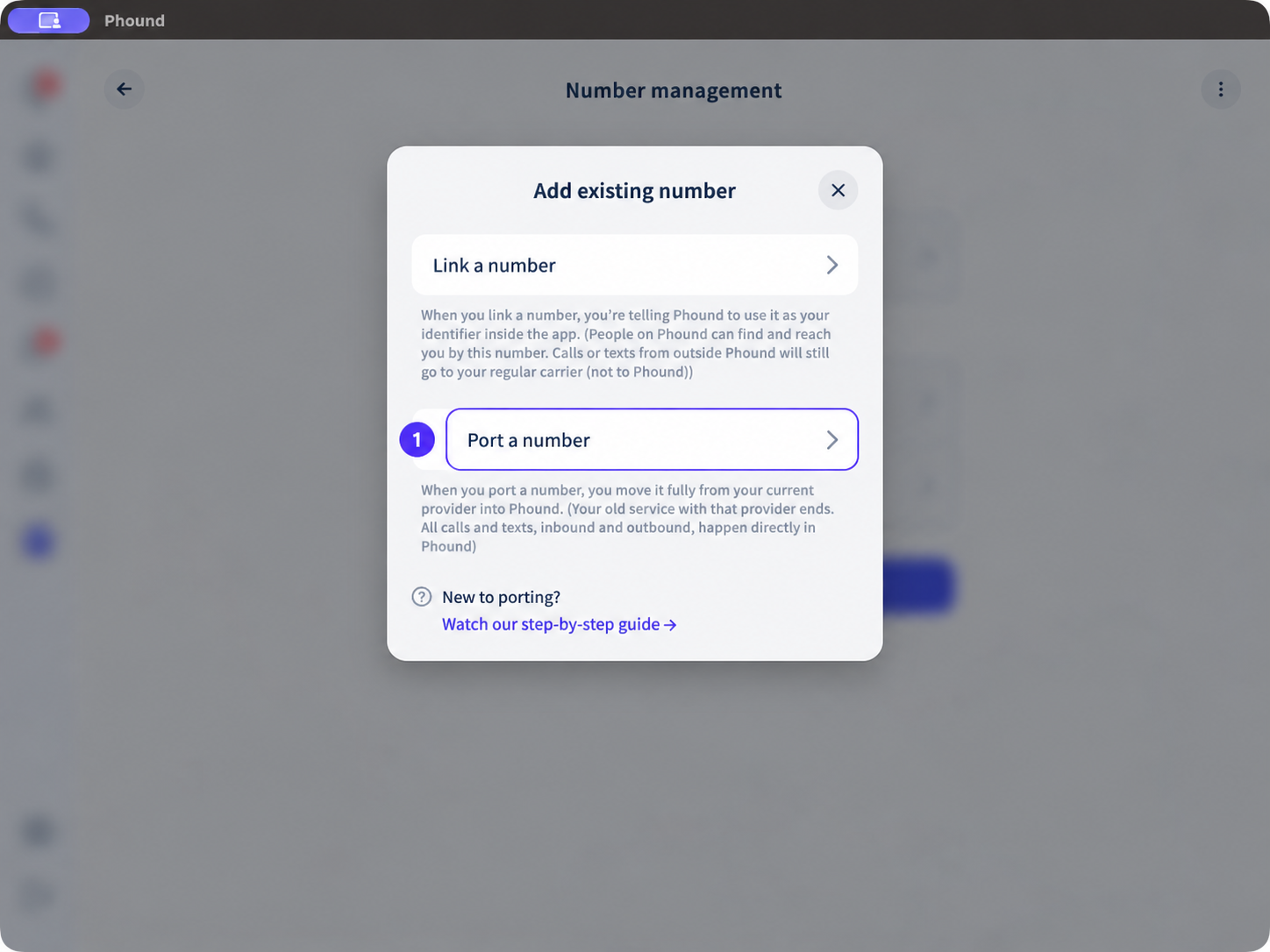
- Select Port a number to begin a transfer.
After selecting Add existing number, choose Port a number from the full-screen dialog below.
Review the information shown before confirming a number order or transfer. Opening these pages does not make a change to your account.
Review your subscriptions
- From Account, select Subscriptions.
- Review the plans and add-ons shown for your account.
- Use the plan and confirmation screens as the source of truth for current pricing, included numbers, billing cycle, and available add-ons.
If the layout looks different
This guide covers Phound Desktop. Mobile navigation can use a different layout. If you cannot find a row shown here, update Phound to the current supported version and sign in again.