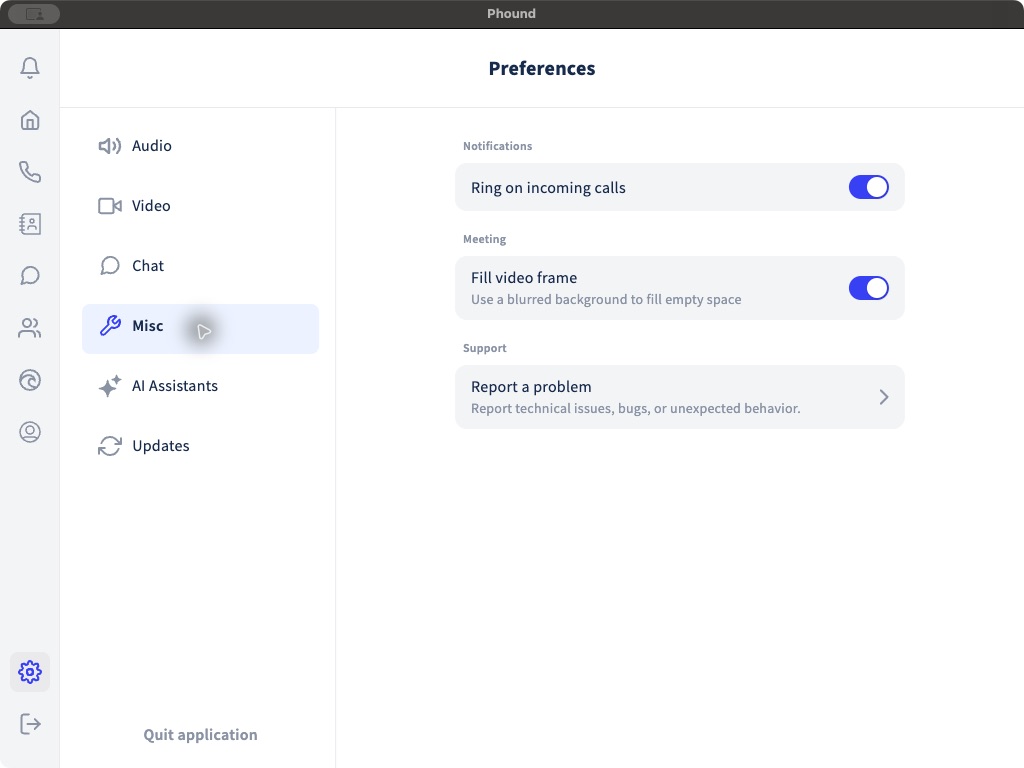
Select the gear in the Phound desktop sidebar to open Preferences. The available sections include Audio, Video, Chat, Misc, AI Assistants, and Updates.
Ring on Incoming Calls
Open Misc and turn on Ring on incoming calls when you want the desktop app to ring for an incoming Phound call.
If Phound still does not ring:
- Confirm that the computer is not muted.
- Review the selected playback device under Audio.
- Confirm that macOS allows Phound notifications.
- Check that the persona can receive incoming calls.
See Incoming Call Routing for persona-specific routing.
Fill the Video Frame
Under Misc > Meeting, turn on Fill video frame to use a blurred background to fill empty space around the video.
This is an appearance setting. It is not screen sharing and it does not choose a virtual background. Use the live meeting's Video settings for camera mirroring and virtual backgrounds.
See Audio, Video, and Virtual Backgrounds.
Check the Installed Version
- Open Preferences.
- Select Updates.
- Note the Phound version displayed on the page.
- Review the update status shown beneath the version.
Include the exact version number when reporting a desktop problem. The number changes as Phound releases new versions, so use the value shown in your app rather than one from an older screenshot.
Other Preference Guides
- Chat and Voice Message Preferences
- Create and Use Canned Responses
- Use Magnum AI for Call and Meeting Notes
- Customize Chat Assistant Actions
- Audio, Video, and Virtual Backgrounds
If a setting looks correct but the feature still fails, report the problem from the desktop app.