Magnum AI is Phound's conversation assistant. When Magnum is included in a supported call or meeting, it can take notes and provide a detailed summary, a transcript separated by speaker, and follow-up answers about the conversation.
Use Magnum when you want a searchable record of what happened without relying only on handwritten notes.
What Magnum Provides
- A detailed summary of the important topics and events.
- A transcript that separates active speakers.
- Post-meeting questions and answers about the captured conversation.
- A conversation in Phound Chat where you can review the result and continue asking questions.
Magnum must be included in the call or meeting you want it to capture. A regular recording does not automatically become Magnum meeting intelligence. Summaries and transcripts are separate from recording files. To download an existing recording's audio, use Account > Storage and follow Download a Recording. When the recording-detail page provides Download full transcript, that link retrieves the transcript separately.
Select Magnum as Your Call Assistant
- Open the Phound desktop app.
- Select the gear in the left sidebar.
- Select AI Assistants.
- Open Call assistant.
- Choose Magnum AI.
- Confirm that Magnum AI now appears under Call assistant.
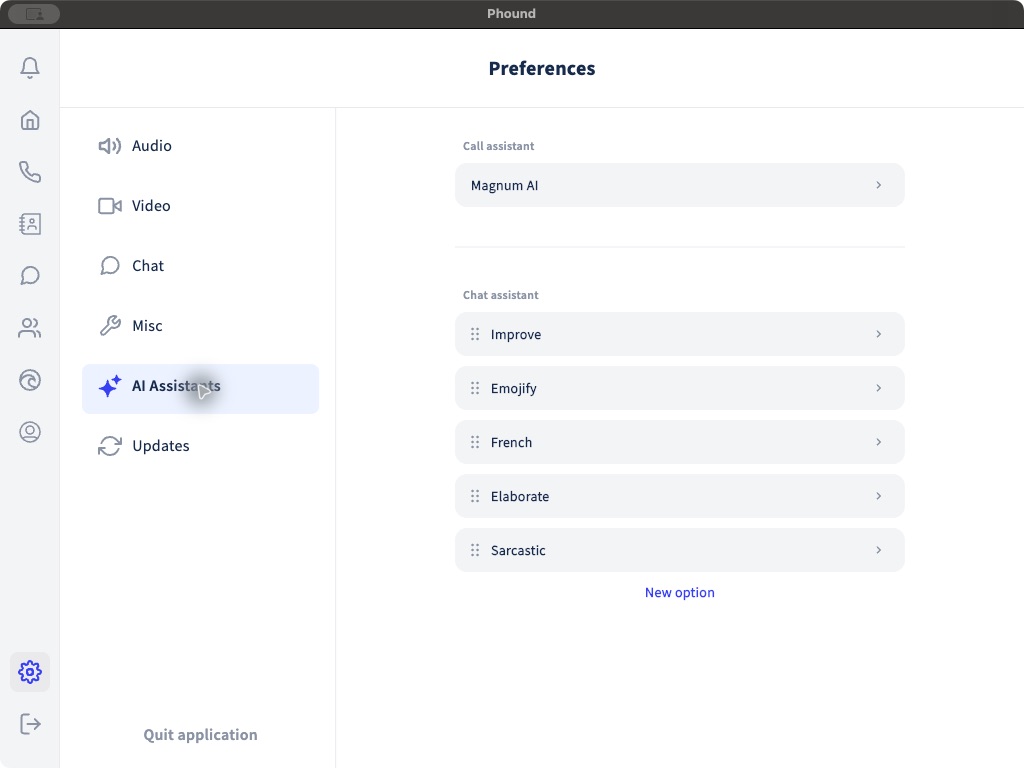
The assistant chooser can show Magnum AI and other eligible Phound contacts. The selected name is the call assistant configured for the desktop app.
Before an important conversation: Confirm that Magnum is included in the actual call or meeting. If it is missing, add Magnum as an attendee where the meeting controls allow it. This check prevents an important conversation from finishing without Magnum capturing it.
Add Magnum to a Meeting
When hosting a Phound meeting, add Magnum AI as an attendee near the beginning so it can capture the complete conversation. After the meeting finishes, allow time for the summary and transcript to process.
See Hosting Meetings for the meeting workflow and Meeting Hosts, Co-Hosts, and Permissions for participant controls.
Review the Result in Chat
Open Chat and find the conversation associated with the meeting or Magnum AI. A completed Magnum result can include the summary, transcript, and an attached document. Long summaries may provide a show more control.
You can also open the Magnum AI contact and choose Message to ask a follow-up question about conversation intelligence available to Magnum.
Useful follow-up questions include:
- What decisions were made?
- What follow-up items were assigned, and to whom?
- Which questions were left unanswered?
- What did the customer say about the proposed timeline?
Magnum can make mistakes. Verify names, dates, phone numbers, commitments, and exact wording against the transcript or original conversation before acting on them.
Magnum AI and the MCP Are Different
Magnum AI creates the meeting intelligence inside Phound. The optional Magnum AI MCP lets an authenticated external AI tool work with eligible meeting intelligence that Magnum already captured.
The MCP does not join meetings or create missing transcripts. Read Connect Magnum AI with MCP when you want Claude, Codex, Cursor, or another compatible tool to search and analyze your eligible meetings.
Privacy and Recording Responsibilities
- Follow the recording, transcription, and consent requirements that apply to your organization and participants.
- Tell participants about recording or transcription when required.
- Review AI-generated summaries before placing them in customer records or using them for decisions.
- Only connect external AI tools that you trust and intend to authorize.
If a Summary Is Missing
Check these items in order:
- Confirm that Magnum was included in the call or meeting.
- Allow time for processing after the conversation ends.
- Open Chat and search for the meeting or Magnum AI.
- Confirm that your plan and account include the required Magnum features.
- If the result still does not appear, report the problem from the desktop app.