Select the blue + in a Flow to open Add action. The current desktop builder provides 12 action types.
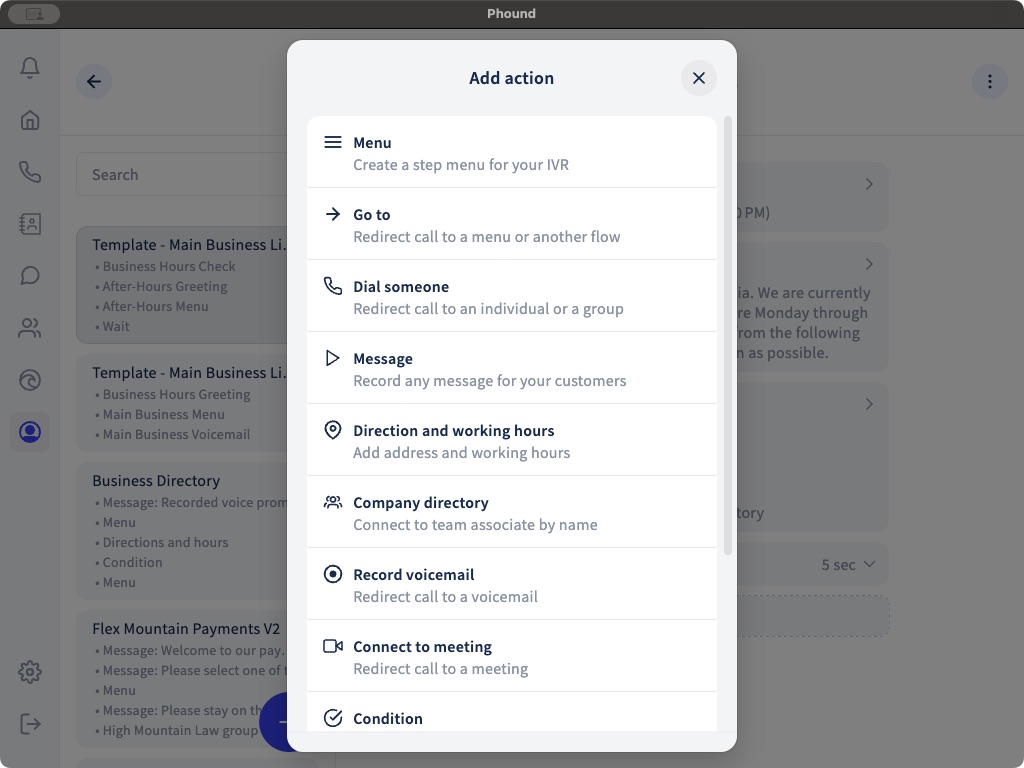
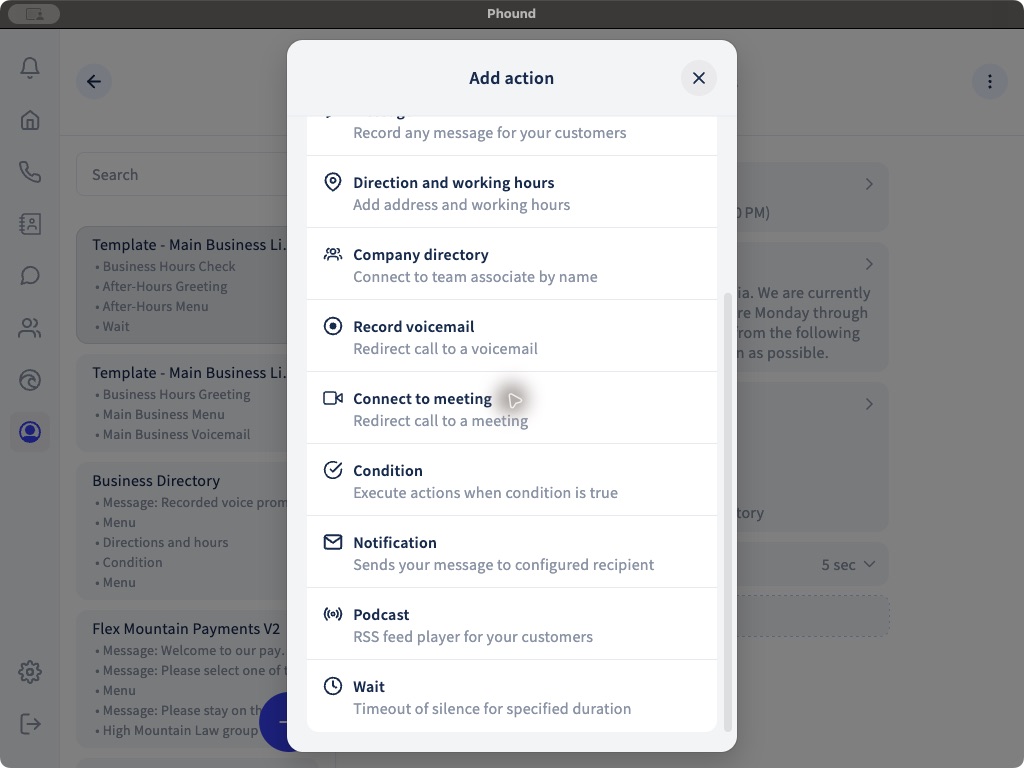
All Flow Actions
| Action | What it is for | Settings to review |
|---|---|---|
| Menu | Gives callers keypad choices. | Name, options prompt, assigned keys, action under each key, and Menu fallback behavior. |
| Go to | Redirects the call to a Menu or another Flow. | Destination and the possibility of an unintended loop. |
| Dial someone | Calls one person or a group. | Recipients, strategy, dial timeout, waiting queue, and actions if dialing fails. |
| Message | Plays information to the caller. | Name and whether the audio comes from text, a recording, a URL, or an uploaded file. |
| Direction and working hours | Provides an address and weekly hours. | Address, map result, display-hours toggle, enabled days, and start and end times. |
| Company directory | Lets callers connect to an associate by name. | The team whose members should appear and the actions that follow the directory. |
| Record voicemail | Records a voicemail for a selected Phound contact. | Voicemail recipient and actions if voicemail fails. |
| Connect to meeting | Sends the caller to a selected Phound meeting destination. | Meeting destination and fallback actions. |
| Condition | Runs nested actions when a time schedule is true. | Enabled days, start and end times, timezone, and the true and false call paths. |
| Notification | Sends a configured message when the call reaches the action. | Recipient, message content, inserted call fields, and messaging charges. |
| Podcast | Plays an RSS feed for callers. | Feed ownership, availability, playable audio, and the path after playback. |
| Wait | Adds a period of silence. | 1, 3, 5, 10, 15, 30, or 60 seconds, plus what callers hear immediately before and after the silence. |
Menu Prompts and Keys
A Menu can generate its default options prompt from the actions assigned to its keys. You can also use a custom text message, record your own prompt, or upload an audio file.
Open every Menu option and confirm that its displayed key matches the spoken prompt. Keep the Flow-level repeat key out of the Menu's assigned options.
Messages and Audio
The Message editor provides:
- Custom message for text-to-speech.
- Record your message for microphone recording.
- Specify URL for an audio file or live stream.
- Upload audio file for a local recording.
The Menu prompt editor provides a generated default message, custom text, microphone recording, or uploaded audio. It does not show the URL choice that appears in the Message action.
Conditions and Working Hours
The Condition editor uses enabled weekdays, start and end times, and an explicit timezone. Add the business-hours actions under Actions when condition is true. Then test what follows the Condition when the schedule is false.
The Direction and working hours action has its own weekly hours. Keep those hours aligned with the Condition so the route and the hours spoken to callers do not contradict each other.
Fallback Actions
Dial someone, Record voicemail, and Connect to meeting can contain actions that run when the primary action cannot complete. A fallback can be another message, a voicemail, another transfer, or another supported Flow action.
Do not leave a caller at a failed destination. Add an understandable fallback and test it by declining, not answering, and using an unavailable destination.
For the complete call-transfer controls, see Dial Someone, Strategies, and Waiting Queues. For global settings, see Configure Flow Settings.