This example creates one clear greeting with three useful destinations. Have the sales recipient, support recipient, and voicemail recipient ready before you begin.
What You Will Build
Step 1: Add the Menu
- Open Account in the Phound desktop app.
- Select Flows, then open the Flow you want to configure.
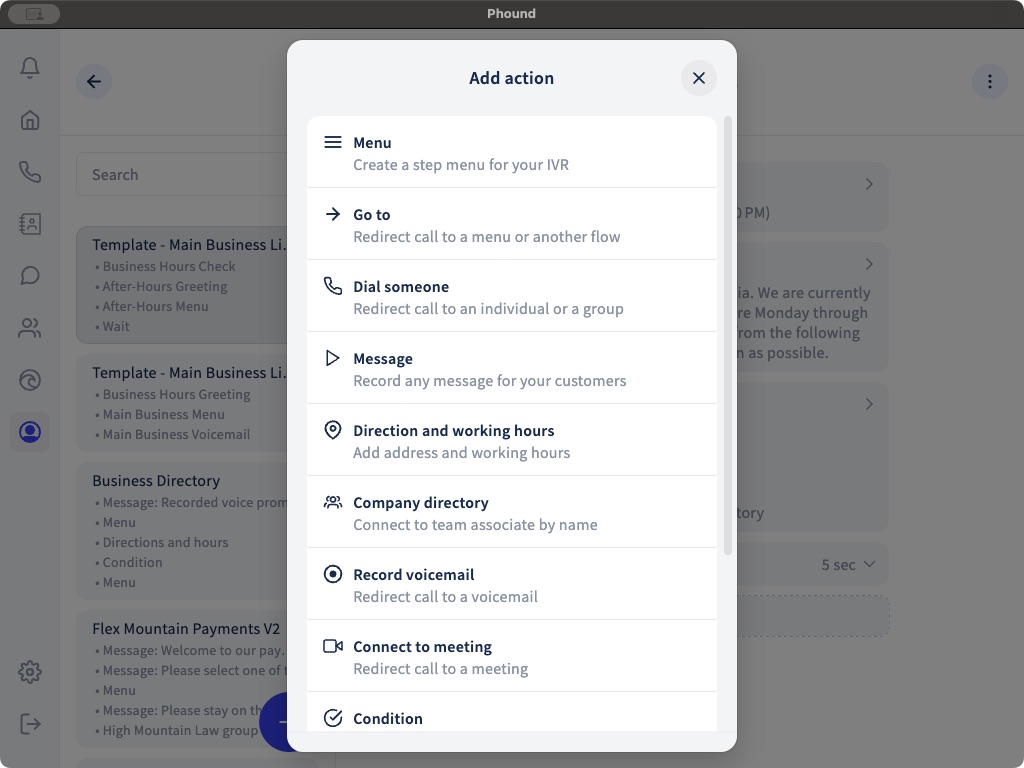
- Select the blue + where the phone menu should begin.
- Select Menu and name it
Main Menu.
Step 2: Add the Greeting
Use the generated prompt, custom text-to-speech, a microphone recording, or an uploaded audio file. Keep the wording short and make it match the assigned keys exactly.
Thanks for calling. Press 1 for sales, 2 for support, or 3 to leave a voicemail.
Listen to the complete prompt before continuing.
Step 3: Connect the Choices
- Under key
1, add Dial someone and select the sales recipient or group. - Under key
2, add Dial someone and select the support recipient or group. - Under key
3, add Record voicemail and select the person who should receive it.
The repeat key in Flow settings cannot also be one of these Menu choices. See Configure Flow Settings if you need to change it.
Step 4: Handle Missed Calls
Open both Dial someone actions and add Actions if dial fails. A simple fallback is a short explanation followed by Record voicemail.
Do not send two Go to actions back to each other. That creates a loop instead of a useful endpoint.
Step 5: Make One Complete Test Call
Call from a separate phone and press each key. Decline one routed call to confirm its fallback, then leave a voicemail and verify that the intended recipient receives it.
Use Test and Troubleshoot a Flow for the complete pre-launch checklist. When the Flow is ready, follow Connect a Flow to a Persona.